

Let’s face it: nobody dreams of spending their workday copying and pasting data from websites into Excel. Yet, for sales teams building prospect lists, marketers tracking competitors, or ecommerce managers monitoring prices, this is still a daily grind. I’ve talked to folks who spend more time wrangling web data than actually analyzing it. The numbers are staggering—businesses on average burn through 25 hours per week on manual data entry and reconciliation. That’s not just tedious—it’s expensive, error-prone, and, frankly, a waste of talent.

Extract Website Data to Excel with AI Get Started Free
But what if you could turn that mountain of messy web data into a clean Excel spreadsheet in just a couple of clicks—no coding, no copy-paste marathons, no headaches? That’s exactly the problem we set out to solve at Thunderbit. In this guide, I’ll show you how anyone (yes, even if you’re not a techie) can extract data from any website to Excel using the simplest, most reliable method available today.
What Does “Extract Data from a Website to Excel” Mean?
Let’s break it down. Extracting data from a website to Excel means taking information you see on web pages—like tables, product lists, contact info, or property listings—and transforming it into a structured spreadsheet you can actually use. Imagine you’re looking at a directory of businesses online. Instead of copying each name, email, and phone number by hand, extraction tools automate the process, dropping each piece of info into the right row and column in Excel.
It’s like having a super-fast digital assistant who reads the web for you and fills out your spreadsheet—accurately, every time. This isn’t just about convenience. Web pages are designed for browsing, not analysis. By pulling data into Excel, you unlock the ability to filter, sort, analyze, and combine it with your own business data. Suddenly, that messy web content becomes actionable insight.
Common data types people extract:
- Product listings (name, price, rating, stock)
- Contact details (company, address, email, phone)
- Real estate listings (location, price, property features)
- Reviews, schedules, event details, and more
If you can see it on a website, chances are you can extract it to Excel.
Why Extract Website Data to Excel? Key Business Benefits
Why do so many teams need to get web data into Excel? Because it’s the fastest way to turn scattered online info into something you can actually use for decision-making. Here’s what I see across industries:
| Department | Use Case Example | Benefit Gained |
|---|---|---|
| Sales | Scrape business directories or LinkedIn for leads | Automates prospect list building; more time selling, less time copying data |
| Marketing | Track competitor products, pricing, or reviews | Real-time market intelligence; spot trends and react faster |
| Ecommerce | Monitor competitor prices and product details | Dynamic pricing, better inventory decisions, maximize revenue |
| Real Estate | Aggregate property listings from multiple sites | Unified, up-to-date view of the market; faster client updates |
| Operations | Scrape supplier sites for stock levels or compliance info | Up-to-date data for planning and reporting; fewer manual errors |
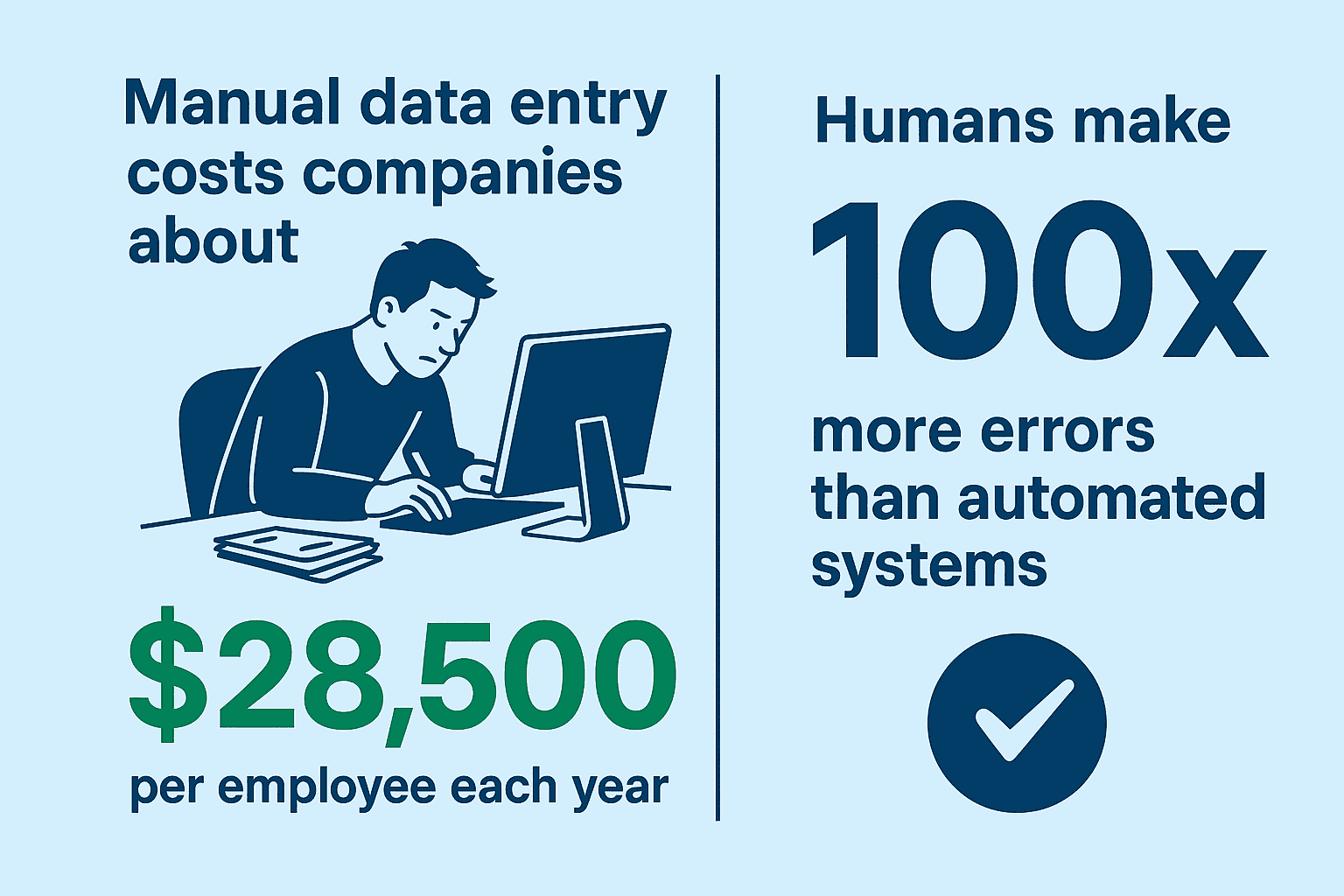
The ROI is real. Manual data entry costs companies about $28,500 per employee each year, and humans make 100 times more errors than automated systems. Automation doesn’t just save time—it improves accuracy, reduces burnout, and lets your team focus on what actually matters.
Comparing Methods: How to Extract Data from a Website to Excel
There are a few ways to get web data into Excel. Some are old-school, some are high-tech, and each has its pros and cons. Here’s the lay of the land:
| Method | Ease of Use | Speed | Accuracy | Maintenance | Best For |
|---|---|---|---|---|---|
| Manual Copy-Paste | Easiest (no tools) | Slow (hours/days) | Low (error-prone) | Ongoing manual effort | Tiny, one-off tasks |
| Excel Power Query | Moderate | Moderate (1 page fast) | Medium (misses dynamic) | Manual refresh | Simple, static web tables |
| Coding (Python/VBA) | Hard (needs coding) | Fast (once built) | High (if coded right) | High (scripts break) | Complex/large-scale, tech-savvy users |
| AI No-Code Tool (Thunderbit) | Very Easy (no coding) | Very Fast (minutes) | High (AI auto-detects) | Low (auto-adapts) | Everyday business use, non-technical users |
Manual copy-paste is fine for five rows, but a nightmare for anything bigger. Excel’s built-in tools (like Power Query) work if the website is simple and static, but break on modern, dynamic sites. Coding your own scraper gives you power, but you need to be a developer—and you’ll spend time fixing scripts every time a website changes.
Thunderbit and other AI-powered tools are built for the rest of us. You don’t need to know code or even think about how the website is built. Just point, click, and let the AI do the heavy lifting.
Why Choose Thunderbit for Website to Excel Extraction?
I’m biased, but here’s why Thunderbit stands out (and why so many business users have switched):
- AI Suggest Fields: Click one button, and Thunderbit’s AI scans the page, suggesting the best columns to extract—no setup, no guesswork.
- 2-Click Scraping: Once fields are set, just hit “Scrape.” Thunderbit grabs all the data and structures it for you.
- Handles Subpages & Pagination: Need info from detail pages or across multiple pages? Thunderbit’s AI follows links and clicks “Next” for you.
- Free Excel Export: Export your results to Excel, Google Sheets, Airtable, or Notion—no paywall, no limits.
- No Coding, No Templates: Thunderbit adapts to any website, so you don’t need to build templates or write scripts.
- Beginner-Friendly: The interface is designed so anyone can use it. If you can browse the web, you can use Thunderbit.
Users on Product Hunt rave about Thunderbit’s “user-friendly interface” and how it “replaces tedious copy-paste tasks” for go-to-market teams. I love hearing stories from folks who say, “I got my first 500-row spreadsheet in two minutes and never looked back.”
Extract Website Data to Excel Instantly
Step-by-Step Guide: How to Extract Data from a Website to Excel Using Thunderbit
Let’s walk through the process, step by step. Even if you’ve never scraped data before, you’ll be up and running in minutes.
1. Install the Thunderbit Chrome Extension
Head to the Thunderbit Chrome Extension Download Page and click “Add to Chrome.” You’ll see the Thunderbit icon appear in your browser. Sign up (the free tier lets you try it right away).
2. Navigate to the Target Website
Go to the page with the data you want. Maybe it’s a list of products, a directory of businesses, or a real estate search result.
3. Click “AI Suggest Fields”
Open Thunderbit by clicking the extension icon. Hit “AI Suggest Fields.” Thunderbit’s AI will read the page and suggest columns like “Product Name,” “Price,” “Rating,” or “Contact Email.” You’ll see a preview of the data it found.
4. Adjust Columns if Needed
Usually, Thunderbit gets it right. But you can rename columns, delete ones you don’t need, or add new fields. You can even add custom AI instructions for tricky data (like categorizing or formatting).
5. Click “Scrape” and Preview Results
Hit “Scrape.” Thunderbit will extract the data and show it in a table. Each row is a record (like a product or a listing), and each column is a field you defined.
6. Export Data Directly to Excel
Click “Export to Excel.” Download your .xlsx file, or send the data straight to Google Sheets, Airtable, or Notion. That’s it—your web data is now in Excel, ready for analysis.
Pro tips:
- If you need to log in or fill out a search form, use Thunderbit’s AI Autofill feature first.
- For recurring tasks, save your scraper template for next time.
Advanced Features: Handling Pagination, Subpages, and Scheduling
Real-world websites aren’t always simple. Sometimes data is spread across multiple pages, or the details you need are hidden on subpages. Thunderbit has you covered:
- Pagination: Thunderbit’s AI detects “Next” buttons or infinite scroll and automatically scrapes all pages—not just the first one.
- Subpage Scraping: Need more details? Thunderbit can follow links on each row (like product pages or agent profiles) and pull extra info, appending it to your table.
- Scheduled Scraping: Want fresh data every day? Set up a schedule in plain English (“every morning at 8am”), and Thunderbit will run the scrape automatically—even if your browser is closed.
Example: An ecommerce manager wants to monitor competitor prices. They set up Thunderbit to scrape all product listings (with pagination), follow each product link for details, and schedule it to run daily. Each morning, a new Excel file lands in their inbox—no manual work required.
Save Even More Time: Using Thunderbit’s Free Templates for Popular Sites
For the most popular platforms, Thunderbit offers instant data scraper templates. These are pre-built for sites like Amazon, Zillow, Instagram, and Shopify. No need to set up fields or run the AI—just pick the template, enter your keyword or location, and click run.
Benefits:
- Zero setup: Templates know exactly what data to extract.
- No AI credits needed: Templates don’t use up your AI quota.
- Reliability: Templates are maintained by Thunderbit, so they keep working even if the site changes.
If you’re regularly scraping Amazon products, Zillow listings, or Instagram profiles, these templates are a massive time-saver.
Thunderbit vs. Traditional Methods: A Quick Comparison
Here’s how Thunderbit stacks up against the old ways:
| Feature/Criteria | Manual Copy-Paste | Excel Power Query | Coding (Python/VBA) | Thunderbit (AI) |
|---|---|---|---|---|
| Setup Time | None, but slow | Moderate | High | Minutes (2 clicks) |
| Learning Curve | None | Moderate | Steep | Beginner-friendly |
| Data Accuracy | Low (typos) | Medium | High (if coded) | High (AI auto-detect) |
| Handles Pagination | No | No | Yes (if coded) | Yes (auto) |
| Handles Subpages | No | No | Yes (if coded) | Yes (auto) |
| Maintenance | Ongoing | Manual refresh | Frequent updates | Auto-adapts/updates |
| Export to Excel | Yes (manual) | Yes | Yes (with code) | Yes (free, direct) |
| Best For | Tiny jobs | Static tables | Devs, complex jobs | Business users, all |
For most business users, Thunderbit is the sweet spot—fast, accurate, and no technical skills required.
How to Scrape Website Data into Excel using AI Get Started Free
Conclusion & Key Takeaways
Extracting website data to Excel is no longer a chore reserved for coders or the copy-paste warriors among us. With Thunderbit, anyone can turn messy web pages into actionable spreadsheets in just a couple of clicks. The benefits are clear:
- Save hours (or days) of manual work
- Reduce errors and improve data quality
- Stay ahead with up-to-date, actionable insights
- Empower your team to focus on what matters
Ready to see the difference for yourself? Download Thunderbit for free and try extracting data from your favorite website to Excel. I promise, your Ctrl+C and Ctrl+V keys will thank you.
Want to learn more? Check out the Thunderbit Blog for more guides, tips, and advanced scraping techniques.
Try Thunderbit Free for Website to Excel
FAQs
1. What kinds of website data can I extract to Excel with Thunderbit?
Thunderbit can extract tables, product lists, contact info, prices, reviews, images, and more—basically anything visible on a web page. It even supports subpage and multi-page extraction.
2. Do I need to know how to code to use Thunderbit?
No coding required! Thunderbit is designed for non-technical users. Just install the extension, click “AI Suggest Fields,” and you’re ready to scrape.
3. Can Thunderbit handle websites with pagination or infinite scroll?
Yes. Thunderbit’s AI detects and navigates pagination or infinite scroll automatically, so you get all the data—not just what’s on the first page.
4. Is it free to export data to Excel with Thunderbit?
Absolutely. Thunderbit lets you export your scraped data to Excel, Google Sheets, Airtable, or Notion for free—even on the free tier.
5. What if I need to scrape data from popular sites like Amazon or Zillow?
Thunderbit offers free, instant templates for sites like Amazon, Zillow, Instagram, and more. Just pick the template, run it, and export your data to Excel in one click.
Ready to supercharge your data workflow? Get started with Thunderbit today—and say goodbye to manual data entry forever.
Try AI Web Scraper for Excel Get Started Free




