

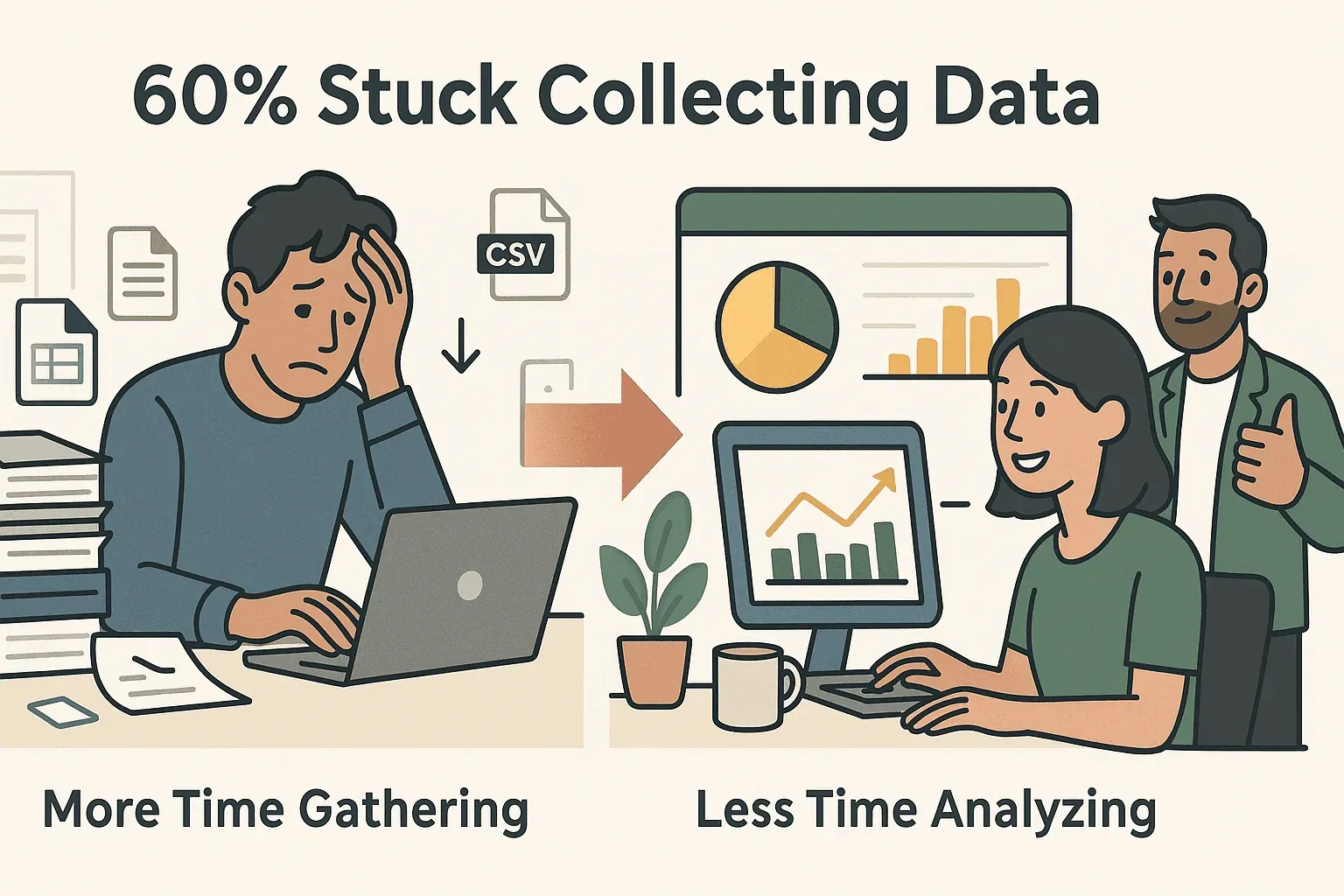
There’s something oddly satisfying about a perfectly organized Excel spreadsheet—until you realize you have to fill it by copying data from dozens (or hundreds) of web pages. If you’ve ever spent your morning right-clicking, highlighting, and pasting data into Excel, you’re not alone. In fact, recent surveys suggest that over 60% of business professionals spend more time collecting and organizing data than actually analyzing it. For sales, operations, and marketing teams, getting fresh, accurate data from websites into Excel isn't just a chore—it's mission-critical for everything from lead generation to price monitoring.
 But let’s be honest: the old-school way of copying data by hand is slow, error-prone, and about as fun as watching paint dry. That’s why I’m excited to walk you through both the classic manual methods and the new, AI-powered shortcuts—especially how Thunderbit (the tool my team and I built) can help you go from “I wish this was in Excel” to “Done!” in just a couple of clicks.
Manual vs. Automated: How to Copy Data from a Website to Excel
Let’s start with the basics. There are a few main ways to get data from a website into Excel:
- Manual Copy-Paste: Highlight, copy, and paste data directly from your browser into Excel.
- Excel’s “From Web” Feature: Use Excel’s built-in tools to import tables from web pages.
- Automated Tools (like Thunderbit): Use web scraping tools to extract and export data automatically.
Each method has its place, but the differences are huge when it comes to speed, accuracy, and scalability. Here’s a quick rundown:
| Method | Pros | Cons | Best For |
|---|---|---|---|
| Manual Copy-Paste | Simple, no setup needed | Slow, error-prone, doesn’t scale | One-off, small jobs |
| Excel “From Web” | Built-in, works for simple tables | Struggles with complex/dynamic sites, limited control | Static, well-structured tables |
| Automated Tools | Fast, accurate, handles complex/dynamic data | Requires setup (but much easier with AI tools) | Frequent, large, or complex jobs |
Manual Copy-Paste: The Old Standby
- How it works: Highlight the data on a web page, right-click “Copy,” then paste into Excel.
- Limitations: Formatting often breaks, you miss hidden data, and you have to repeat for every page. For tables, Excel sometimes helps—but for lists, reviews, or contact info, it’s a slog.
Excel’s “From Web” Feature
- How it works: In Excel, go to Data > Get Data > From Web, paste the URL, and Excel tries to import tables.
- Limitations: Works best for simple, static tables. Struggles with login-required pages, infinite scroll, or dynamic content. Customization is limited.
Automated Tools: The Modern Approach
- How it works: Use a web scraping tool or extension to extract data automatically. Tools like Thunderbit use AI to read the page, structure the data, and export it to Excel or Google Sheets.
- Limitations: Some tools require coding or templates, but AI-powered options (like Thunderbit) are designed for non-technical users.
Scrape Website Data into Excel with AI Get Started Free
Why Automate? The Business Value of Copying Data from Website to Excel
Let’s face it: time is money. Automating the process of copying data from websites to Excel isn’t just about saving your wrists from carpal tunnel—it’s about unlocking real business value.
Key Benefits of Automation
- Save Hours (or Days): What used to take hours can now be done in minutes.
- Reduce Errors: Automation means fewer copy-paste mistakes and cleaner data.
- Enable Frequent Updates: Set up recurring scrapes to keep your Excel sheets fresh.
- Scale Up: Handle hundreds or thousands of pages, not just a handful.
Real-World Use Cases
| Team/Role | Use Case | Impact of Automation |
|---|---|---|
| Sales | Scrape leads/contact info from directories | Build bigger, fresher lead lists |
| Ecommerce | Monitor competitor prices & stock | React faster to market changes |
| Operations | Aggregate supplier/product data | Centralize info, reduce manual work |
| Marketing | Collect reviews, testimonials, or mentions | Track brand sentiment at scale |
One study found that companies using modern, AI-driven scraping tools save 30–40% of their time on data extraction tasks. That’s not just a nice-to-have—that’s a competitive edge.

Meet Thunderbit: The Easiest Way to Copy Data from a Website to Excel
Now, I’ll admit I’m a little biased—but Thunderbit really is the tool I wish I’d had years ago. Thunderbit is an AI-powered Chrome Extension that helps anyone—especially non-technical users—scrape data from any website and export it to Excel, Google Sheets, Airtable, or Notion in just a couple of clicks.
What Makes Thunderbit Different?
- 2-Click Scraping: Click “AI Suggest Fields,” then “Scrape.” That’s it.
- Natural Language Instructions: Tell Thunderbit what you want (“Get all product names and prices”), and the AI figures out the rest.
- No Coding, No Templates: You don’t need to write scripts or build complicated templates.
- Supports 34 Languages: Perfect for global teams.
- Instant Export: Download as Excel, CSV, or send directly to Google Sheets, Notion, or Airtable.
- Subpage & Pagination Scraping: Thunderbit can visit subpages (like product details or reviews) and handle paginated lists automatically.
- Free Data Export: Exporting your data is always free, no matter how much you scrape.
Thunderbit is trusted by over 100,000 users worldwide, from sales teams to ecommerce operators to real estate agents. And yes, there's a free tier—so you can try it out risk-free.
Copy Website Data to Excel Instantly
Step-by-Step: How to Copy Data from a Website to Excel Using Thunderbit
Ready to see how easy it can be? Here’s a beginner-friendly walkthrough:
Step 1: Install Thunderbit Chrome Extension
- Go to the Thunderbit Chrome Extension page and click “Add to Chrome.”
- Sign up or log in (the free tier lets you scrape up to 6 pages to start).
Step 2: Open Your Target Website
- Navigate to the web page you want to copy data from (product listings, directories, reviews, you name it).
Step 3: Launch Thunderbit and Use “AI Suggest Fields”
- Click the Thunderbit icon in your Chrome toolbar.
- Click “AI Suggest Fields.” Thunderbit’s AI will scan the page and suggest column names (like “Name,” “Price,” “Email,” etc.).
- You can adjust, rename, or add columns as needed.
Step 4: Click “Scrape” and Watch the Data Appear
- Hit the “Scrape” button. Thunderbit will extract the data and display it in a structured table.
- For paginated lists, Thunderbit can follow “Next” buttons or infinite scroll automatically.
Step 5: Export to Excel
- Click “Export” and choose Excel (CSV or XLSX), Google Sheets, Notion, or Airtable.
- Your data is ready to use—no extra formatting needed.
Pro Tips
- Custom Instructions: For tricky fields, add a custom AI prompt (e.g., “Extract only phone numbers in E.164 format”).
- Subpage Scraping: If you need more info (like details from each product page), click “Scrape Subpages” and Thunderbit will visit each link and enrich your table.
- Bulk URL Scraping: Have a list of URLs? Paste them into Thunderbit and scrape them all at once. More on this in our bulk scraping guide.
Troubleshooting Common Issues
Even with AI, web data can be messy. Here are some common challenges and how Thunderbit helps:
- Login-Required Sites: Use Thunderbit in “Browser mode” so it can access pages you’re logged into.
- Dynamic Content (JavaScript): Thunderbit’s AI can handle most dynamic content, but if a site loads data after you scroll, make sure the data is visible before scraping.
- Pagination: Thunderbit auto-detects pagination, but you can also guide it if needed.
- Missing Data: Try renaming columns or adding a more specific AI prompt for better results.
If you ever get stuck, Thunderbit’s documentation and support team are always there to help.
Thunderbit vs. Traditional Web Scraping Tools: What Makes It Different?
Let’s compare Thunderbit to other popular scraping methods:
| Feature | Thunderbit | Manual Scripts (Python, etc.) | No-Code Tools (Octoparse, ParseHub) | Excel “From Web” |
|---|---|---|---|---|
| Setup Time | 2 minutes | 1–2 hours (plus debugging) | 30+ minutes (template building) | 5–10 minutes |
| Coding Required | None | Yes | None | None |
| Handles Complex Sites | Yes (AI-powered) | Yes (if you code for it) | Sometimes (needs template) | No |
| Subpage Scraping | Yes (1 click) | Yes (with code) | Yes (with setup) | No |
| Multi-Language Support | 34 languages | Depends on code | Limited | Limited |
| Export Formats | Excel, Sheets, etc | CSV, Excel (with code) | CSV, Excel, JSON | Excel |
| Maintenance Needed | None (AI adapts) | High (scripts break often) | Medium (templates break) | Low |
| Free Tier | Yes | Yes (if you code) | Yes (limited) | Yes |
Thunderbit’s biggest advantage? It’s built for business users, not developers. No scripts, no templates, no headaches.
How to Scrape Website Data into Excel using AI Get Started Free
Automate Updates: How to Schedule Data Copy from Website to Excel with Thunderbit
Web data changes fast. If you want your Excel sheets to stay up-to-date—without redoing the work every week—Thunderbit’s Scheduled Scraper has your back.
How to Set Up Scheduled Scraping
- In Thunderbit, after setting up your scraper, click “Schedule.”
- Describe your interval in plain English (“Every Monday at 9am” or “Daily at midnight”).
- Input your target URLs or website.
- Click “Start Schedule.”
Thunderbit will automatically scrape the data at your chosen interval and export it to Excel, Google Sheets, or wherever you need it. This is a lifesaver for:
- Price Monitoring: Keep tabs on competitor prices daily.
- Inventory Updates: Track stock levels across suppliers.
- Lead Collection: Refresh your prospect list every week.
No more calendar reminders or manual checks—just fresh data, always ready.
Keeping Data Fresh: The Power of AI for Dynamic Website-to-Excel Workflows
The web isn’t static—prices change, products come and go, and new leads appear every day. That’s why it’s not enough to copy data once; you need a workflow that keeps your Excel sheets current.
Thunderbit’s AI is designed to adapt to site changes automatically. If a website tweaks its layout or adds new fields, Thunderbit re-reads the page and updates its extraction logic—no maintenance required. Plus, you can use AI prompts to:
- Summarize or categorize data as you scrape
- Translate content into your preferred language
- Format phone numbers, emails, or dates automatically
This means your Excel files aren’t just up-to-date—they’re smarter, cleaner, and ready for analysis.
Comparing All Methods: Which Way to Copy Data from a Website to Excel Is Right for You?
Here’s a quick checklist to help you decide:
| Scenario | Best Method | Why |
|---|---|---|
| One-off, small table | Manual Copy-Paste | Fast for tiny jobs |
| Simple, static table (public site) | Excel “From Web” | Built-in, quick for basic tables |
| Large, complex, or dynamic data | Thunderbit | Handles complexity, scales easily |
| Frequent/recurring updates needed | Thunderbit (Scheduled) | Automates refresh, saves time |
| Need subpage or bulk URL scraping | Thunderbit | 1-click subpage/bulk support |
| No technical skills | Thunderbit | No code, no templates, just clicks |
| Custom data formatting or enrichment | Thunderbit | AI-powered, flexible |
If you’re still not sure, start with Thunderbit’s free tier and see how much time you save. You can always mix and match methods as your needs evolve.
Conclusion & Key Takeaways
Copying data from a website to Excel is a universal business need—but it doesn’t have to be a tedious, manual slog. Whether you’re building a lead list, tracking prices, or analyzing market trends, automation is the key to working smarter, not harder.
Key takeaways:
- Manual methods work for tiny jobs, but don’t scale.
- Excel’s built-in tools are limited to simple, static tables.
- Automated tools—especially AI-powered ones like Thunderbit—make it easy to extract, structure, and export web data to Excel, even for non-technical users.
- Thunderbit’s 2-click workflow, subpage scraping, and scheduled updates put powerful automation in everyone’s hands.
- Keeping your data fresh and accurate is crucial for making smart business decisions—and Thunderbit’s AI keeps you ahead of the curve.
Ready to make your next data project a breeze? Download Thunderbit and see how easy it is to copy data from any website to Excel. And if you want to dive deeper, check out the Thunderbit Blog for more guides, tips, and tutorials.
Try AI Web Scraper for Excel Get Started Free
FAQs
1. What’s the fastest way to copy data from a website to Excel?
The fastest way is to use an AI-powered tool like Thunderbit, which lets you extract and export data from any website to Excel in just two clicks—no coding or templates required.
2. Can Thunderbit handle dynamic websites or login-required pages?
Yes! Thunderbit’s AI can handle most dynamic content, and you can use “Browser mode” to scrape data from sites you’re logged into.
3. How does Thunderbit compare to other web scraping tools?
Thunderbit stands out for its ease of use (no coding, no templates), AI-powered field detection, subpage scraping, and instant export to Excel, Google Sheets, Notion, and Airtable. It’s built for business users, not just developers.
4. Can I schedule recurring data updates from a website to Excel?
Absolutely. Thunderbit’s scheduled scraping feature lets you set up automatic, recurring data exports—perfect for price monitoring, inventory tracking, or regular lead collection.
5. Is Thunderbit free to use?
Thunderbit offers a free tier that lets you scrape up to 6 pages (or 10 with a free trial boost). Paid plans start at just $15/month for higher volumes and advanced features. Exporting your data is always free.
For more tips and tutorials, visit the Thunderbit Blog or check out our YouTube channel. Happy scraping—and may your spreadsheets always be up to date!




