
Exporting a list from Sales Navigator is one of those jobs that sounds simple until you try to operationalize it. Sales reps want a clean account or lead list in a CRM. Marketing wants a campaign audience. RevOps wants source tracking, deduplication, and governance. The catch is that Sales Navigator is not designed as a free-form bulk export surface, and that matters for both compliance and data quality.
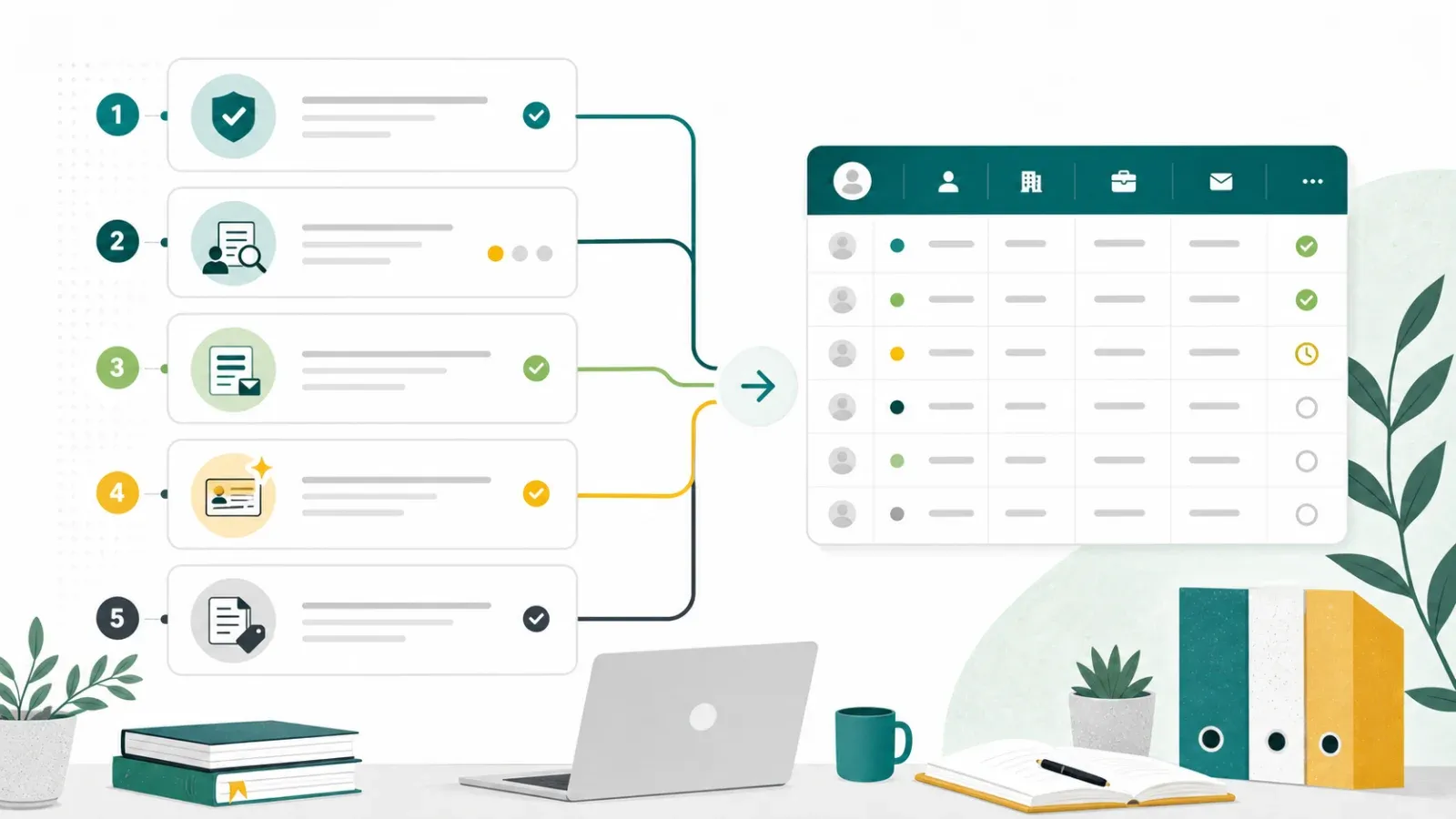
The safest 2026 workflow is not "find a scraper and pull everything out." It is to use LinkedIn-approved paths where available, keep small manual exports tightly scoped, and move follow-up data into your CRM with clear provenance. This guide walks through the practical options without relying on third-party scraping of Sales Navigator pages.
Review LinkedIn's Sales Navigator data export guidance Get Started Free
Can You Export a List from Sales Navigator?
Sales Navigator can be a strong research and relationship-management tool, but exporting is limited by plan, workflow, and LinkedIn's own rules. As of July 1, 2026, LinkedIn's help documentation says CSV/XLS export is not available for Sales Navigator data, while CRM Sync is available for Advanced Plus customers. LinkedIn also publishes a prohibited-software policy covering third-party tools that scrape, automate, or otherwise access LinkedIn in unauthorized ways.
That means the real question is not "what shortcut exports the most fields?" It is:
- Which data does your team genuinely need outside Sales Navigator?
- Is there an approved export or sync path for that data?
- Can the workflow be handled inside your CRM, Sales Navigator, or LinkedIn Ads instead?
- If you add enrichment later, is it based on permitted sources with a clear lawful basis?
Why Teams Want Sales Navigator Lists Outside LinkedIn
Sales Navigator is useful because it helps teams identify accounts, leads, buying-committee members, and relationship signals. Teams usually want that information outside LinkedIn for four reasons:
- CRM follow-up: reps need account ownership, next steps, and activity history in Salesforce, HubSpot, Dynamics, or another CRM.
- Campaign operations: marketing teams need clean segments for webinars, email campaigns, events, or account-based programs.
- Deduplication: RevOps needs to avoid duplicate outreach and keep account records consistent.
- Reporting: leadership wants to understand whether LinkedIn-sourced research is producing meetings, pipeline, and revenue.
Those goals are valid. The execution path is where teams need to be careful.
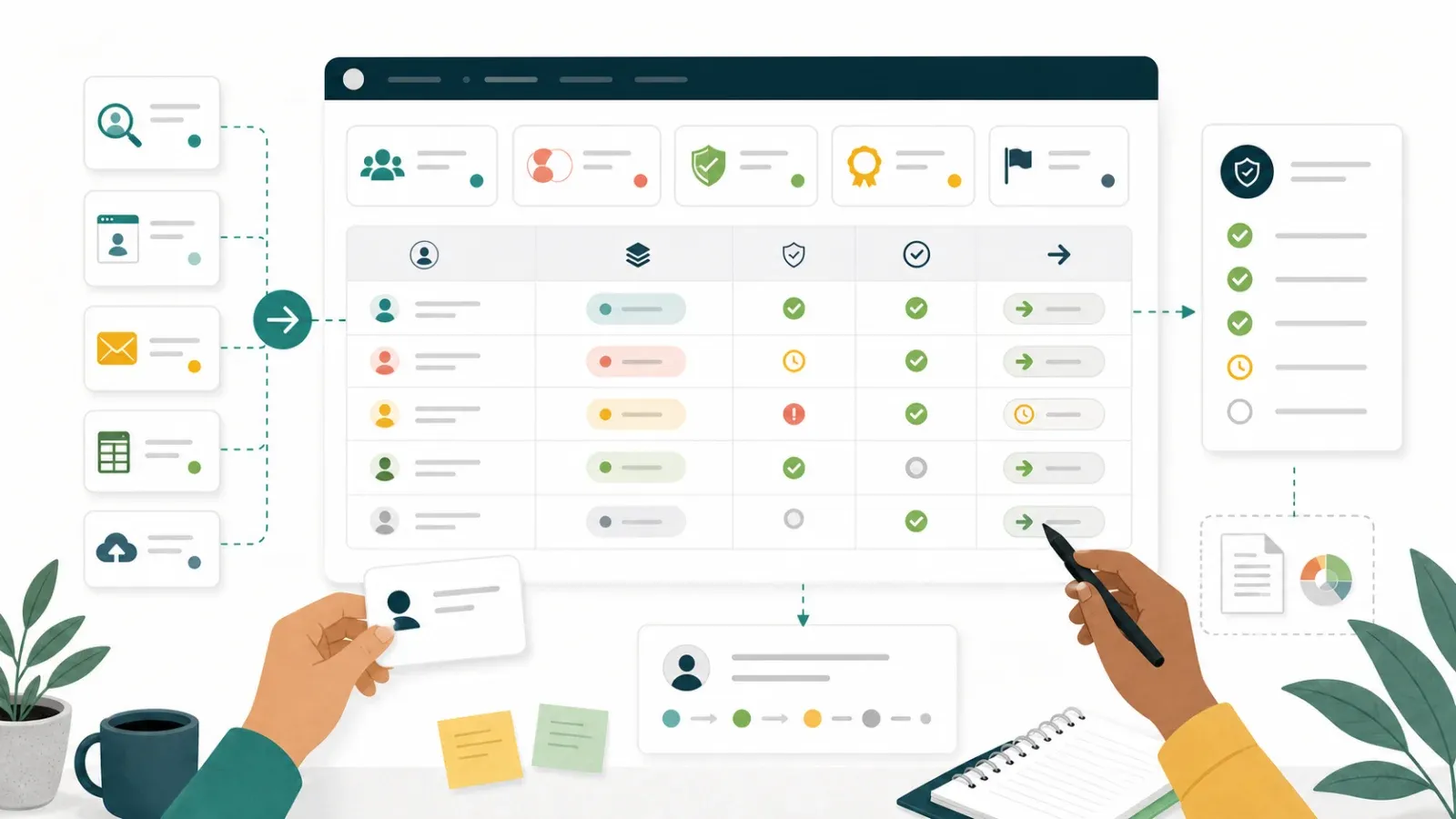
The Compliant Sales Navigator Export Playbook
1. Use CRM Sync If Your Plan Supports It
For teams on Sales Navigator Advanced Plus, LinkedIn's CRM Sync is the cleanest route. It is built for connecting Sales Navigator activity with supported CRMs, reducing manual re-entry and helping reps keep account records aligned.
What to do:
- Confirm that your Sales Navigator plan includes CRM Sync.
- Check which CRM objects and fields your admin has enabled.
- Decide whether reps should sync leads, accounts, notes, or activity signals.
- Add source fields in your CRM so LinkedIn-originated research remains trackable.
- Review synced records before launching outreach.
Best for: sales teams with an admin-owned CRM process and a recurring Sales Navigator workflow.
2. Keep Small Manual Lists Small
For one-off research, manual copying may still be the safest option. It is slow, but it lets a human decide which records belong in the campaign and keeps the list tied to a specific business purpose.
Use this when:
- the list is small
- the campaign is high-touch
- the fields needed are minimal
- a rep needs judgment, not volume
A practical manual list should include only the fields your team needs: name, role, company, profile URL, account owner, source, date captured, and next action. Do not collect extra personal data simply because it is visible.
3. Use LinkedIn Lead Gen Forms for Campaign Leads
If the goal is campaign lead capture, LinkedIn Lead Gen Forms are usually a better fit than trying to export research lists. They collect submitted lead information through LinkedIn's ad workflow and can connect to many CRM and marketing automation systems.
Use this when:
- you are running paid campaigns
- you need consented form submissions
- you want cleaner attribution
- you need a repeatable marketing workflow
4. Enrich Outside LinkedIn With Permitted Sources
Once a lead or account is already in your CRM through an approved path, enrichment should happen from permitted sources: your own website forms, customer interactions, company websites, public business directories, webinar registrations, event platforms you control, or licensed data providers.
Keep Sales Navigator data inside approved channels.
In a separate sales-ops workflow, tools like Thunderbit can help extract structured data from permitted public web pages, PDFs, partner directories, or event pages your team is allowed to process, then export that data to Sheets, Airtable, Notion, or your CRM workflow.
Use Thunderbit for permitted web data workflows
What Not to Do
Avoid building the workflow around unauthorized scraping or browser automation on Sales Navigator. It creates several risks:
- account restrictions or loss of access
- unclear data provenance
- duplicate or stale CRM records
- privacy and outreach-compliance issues
- brittle workflows that break when page layouts change
If a tactic depends on "the platform probably will not notice," it is not a durable RevOps process.
Comparison: Safer Ways to Move Sales Navigator Research Into Your Workflow
| Approach | Best For | Strengths | Limits / Watchouts |
|---|---|---|---|
| CRM Sync | Advanced Plus sales teams | Admin-controlled, repeatable, cleaner governance | Requires eligible plan and CRM setup |
| Manual small list | High-touch account research | Human judgment, low tooling risk | Slow, not for bulk list building |
| LinkedIn Lead Gen Forms | Paid campaign capture | Submitted lead data, attribution, CRM integrations | Requires ad workflow and budget |
| Licensed data provider | Enrichment and contact validation | Contracted data source, coverage at scale | Cost, data-quality review needed |
| Permitted web extraction outside LinkedIn | Company sites, event pages, directories, PDFs | Flexible structured output for adjacent workflows | Must verify source rights and data use |
Post-Export Data Hygiene
No matter how the list reaches your CRM, do the boring cleanup. It is where most teams quietly win or lose.
- Tag the source: use fields like
source = LinkedIn Sales Navigator researchorsource = LinkedIn Lead Gen Form. - Deduplicate before outreach: match by domain, email, CRM account ID, or profile URL where appropriate.
- Separate research from contact permission: seeing a person in Sales Navigator is not the same as having permission to email them.
- Verify contact fields: use approved verification and enrichment sources before sending campaigns.
- Document opt-out handling: make sure unsubscribes and removal requests flow back into the CRM.
Key Takeaways
- Sales Navigator is valuable for account and lead research, but bulk export paths are intentionally limited.
- Prefer LinkedIn-approved routes such as CRM Sync and Lead Gen Forms when you need repeatable workflows.
- Manual lists are acceptable for small, high-touch research, but they should stay narrow and well documented.
- Do not position third-party scraping as the shortcut for Sales Navigator data.
- Thunderbit can support adjacent, permitted public-web workflows such as company websites, public directories, PDFs, and event pages your team is allowed to process.
FAQs
1. Can I export a Sales Navigator lead list to CSV?
LinkedIn's Sales Navigator help documentation says CSV/XLS export is not available for Sales Navigator data as of July 1, 2026. Teams should review LinkedIn's current help center because plan features can change.
2. What is the safest way to connect Sales Navigator research to a CRM?
For eligible plans, CRM Sync is the safest repeatable route because it is built into the Sales Navigator product and managed by admins.
3. Should I use a browser extension to scrape Sales Navigator?
No. For compliance and account-safety reasons, avoid third-party scraping or browser automation on Sales Navigator pages. Use approved sync, campaign, or manual workflows instead.
4. Where can Thunderbit still help a sales team?
Thunderbit can help with permitted public-web sources: company websites, public directories, PDFs, event pages your team controls, and other web pages where extraction is allowed.
5. What should I track after moving leads into my CRM?
Track source, capture date, owner, campaign, consent/permission status where relevant, deduplication status, and opt-out handling.
Learn More
Try Thunderbit for permitted web data extraction Get Started Free




