

Ever tried to make sense of your Amazon order history, only to find yourself lost in a maze of menus, cryptic CSV files, and a user interface that feels like it was designed by someone who’s never actually sold a thing? You’re not alone. With roughly 2 million active sellers across Amazon's marketplaces in 2026 — and around 1.9 million of them concentrated on the US storefront alone — the demand for a simple, reliable way to export Amazon orders to Excel keeps climbing. Yet, if you’ve ever scrolled through Reddit or the Seller Forums, you’ll know the pain: “Why is there no ‘Download All Orders’ button?” “Why is my CSV a wall of chaos?” “Do I really need a computer science degree just to get my sales data?”
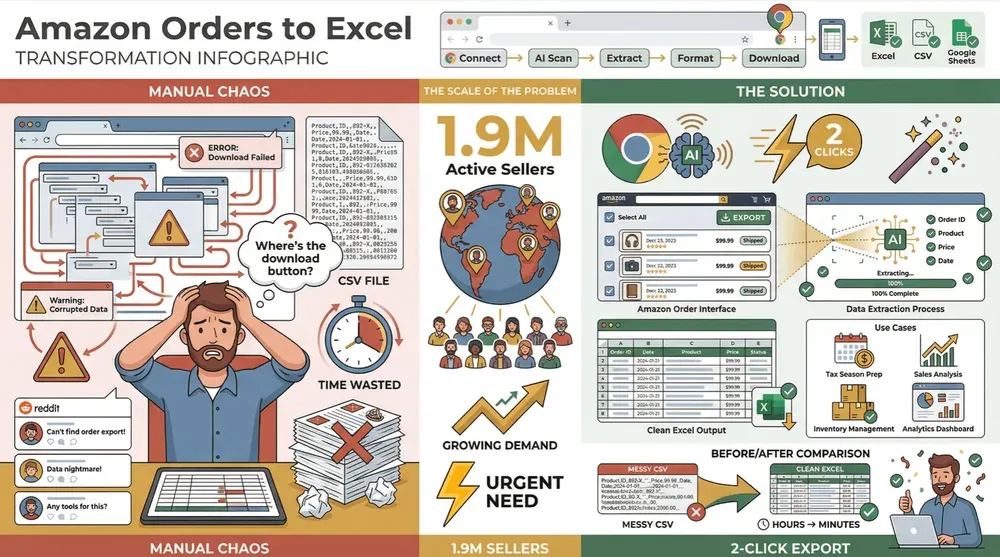
As someone who’s spent years building automation tools for business users, I get it. Whether you’re prepping for tax season, analyzing sales trends, or just trying to keep your inventory in check, having your Amazon order data in Excel isn’t just a convenience—it’s a necessity. In this guide, I’ll walk you through both the manual and automated ways to export your Amazon orders, including how Thunderbit (the AI-powered Chrome Extension my team and I built) can turn a tedious chore into a 2-click breeze. Let’s dive in and make your data work for you, not the other way around.
What Does It Mean to Export Amazon Orders to Excel?
When we talk about “exporting Amazon orders to Excel,” we’re really talking about pulling all your order data out of Amazon Seller Central and putting it into a spreadsheet—usually as a CSV or XLSX file. This isn’t just about having a backup. It’s about transforming your sales data into a format you can actually use: sorting, filtering, analyzing, and reporting, all in the familiar comfort of Excel or Google Sheets.
What kind of data do you get? Typically, an Amazon order export includes:
- Order IDs and dates
- Status (shipped, pending, refunded, etc.)
- Customer and shipping info (with privacy redactions after 30 days)
- Product SKUs, ASINs, names, and quantities
- Pricing, taxes, shipping fees, discounts, and more
In other words, it’s your business’s sales heartbeat, ready for analysis, planning, and compliance. And if you’re wondering why you’d go through the trouble, let’s break down the real business value.
Why Exporting Amazon Orders to Excel Matters for Your Business
Having your Amazon orders in Excel isn’t just a “nice-to-have”—it’s a game plan for smarter business. Here’s why sellers (from side hustlers to full-scale brands) rely on Excel exports:
| Use Case | How Excel Order Data Helps |
|---|---|
| Sales Trend Analysis | Track sales by day, month, or quarter to spot peaks, slumps, and seasonal patterns (Openbridge). |
| Inventory Management | Identify best-sellers and slow movers, optimize stock levels, and avoid costly overstock (Openbridge). |
| Customer Insights | Analyze orders by region or fulfillment channel, spot repeat buyers, and tailor your marketing. |
| Refunds & Quality Control | Calculate return rates, spot problem products, and improve quality (GorillaROI). |
| Financial & Tax Reporting | Prepare for audits, calculate total revenue and taxes, and back up your records (Openbridge). |
| Business Planning | Create summaries for management, compare sales across marketplaces, and plan for growth. |
I’ve seen sellers use Excel exports to forecast demand, adjust marketing, and even catch costly errors before they snowballed. The bottom line: when you own your data, you own your business’s future.
Step-by-Step: How to Export Amazon Orders to Excel Manually (No Plugins Needed)
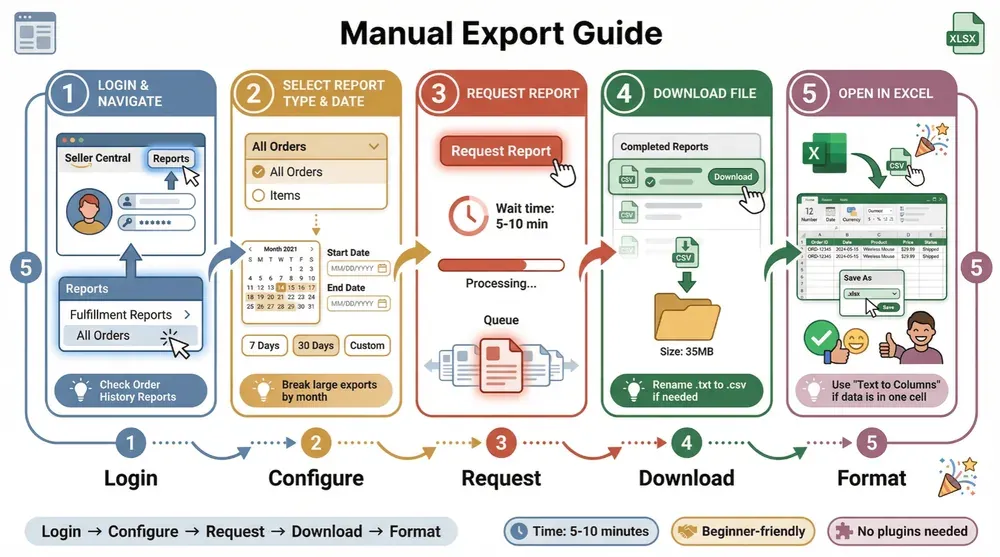
If you’re new to Amazon Seller Central—or just allergic to complicated tech—don’t worry. Here’s a beginner-friendly, step-by-step guide to exporting your orders manually:
1. Log in and Navigate to Reports
- Sign in to your Seller Central account.
- Go to the top menu and click Reports.
- Look for Fulfillment Reports (sometimes just “Fulfillment”).
- Find All Orders or Order History Reports (sometimes under Orders).
Tip: Amazon loves to move things around. If you don’t see “All Orders,” check for “Order Reports” or “Order History Reports.”
2. Select Report Type and Date Range
- Choose your Report Type (usually “All Orders” or “Items” for the most detail).
- Select your Date Range. You can pick presets (last 7 days, 30 days) or enter custom dates.
- For large exports (like a full year), you may need to break it up by month or quarter (Seller Forum).
3. Request the Report
- Click Request Report.
- Wait a few seconds (or minutes for big ranges). Amazon will process your request.
4. Download the File
- Once ready, click Download next to your report.
- The file will be in CSV format (sometimes .txt—just rename it to .csv if needed).
5. Open in Excel
- Open the file in Excel or Google Sheets.
- Format columns as needed (dates, numbers, currency).
- Save as an .xlsx workbook for further analysis.
Screenshots and visuals: If you want a visual walkthrough, check out the Openbridge guide or Putler’s step-by-step.
Troubleshooting Common Issues with Manual Export
Manual exports are simple in theory, but here are the most common headaches (and how to fix them):
- Can’t find the report: Amazon’s UI changes often. Look for “Order History Reports” or check the Seller Forum for direct links.
- Empty or missing data: Double-check your date range and report type. Make sure you’re in the right marketplace (e.g., North America vs. Europe).
- Report stuck or not generating: Shorten the date range, try during off-peak hours, or clear your browser cache.
- Missing fields (like ASIN or tracking): Use the “Items” report for more detail, or combine with other reports if needed.
- Personal data missing: Amazon redacts buyer info after 30 days for privacy (GorillaROI).
- CSV formatting issues: If your data shows up in one column, use Excel’s Text Import Wizard and set the delimiter to “Comma.”
Manual exports get the job done, but they’re slow, repetitive, and often require a lot of cleanup. If you’re tired of wrestling with CSVs, let’s talk automation.
Automate Amazon Orders Export: How Thunderbit Makes It Simple
I built Thunderbit for business users who want results, not headaches. Thunderbit is an AI-powered Chrome Extension that automates the process of exporting Amazon orders to Excel—no coding, no API keys, no IT tickets required.
Here’s why Thunderbit is a favorite among Amazon sellers:
- No technical skills needed: Just point, click, and let the AI do the rest.
- AI Suggest Fields: Thunderbit scans your Amazon orders page and automatically identifies the right columns (Order ID, Date, SKU, Total, etc.).
- 2-Click Scraping: Select the page, click “AI Suggest Fields,” then “Scrape.” Done.
- Handles pagination and subpages: Thunderbit can click through multiple pages and even dive into each order’s detail page for extra info.
- Instant export: Download your data as Excel, CSV, Google Sheets, Airtable, or Notion—free and unlimited.
Let’s break down how it works in practice.
Scrape Amazon Products and Reviews with AI Get Started Free
The magic starts with the AI Suggest Fields button. When you open Thunderbit on your Amazon orders page, the AI scans the page and suggests the most relevant columns—Order ID, Order Date, Buyer Name, Order Total, Status, Fulfillment, SKU, Quantity, and more.
You can:
- Accept the suggested fields as-is (the AI gets it right about 90% of the time).
- Add, rename, or remove columns (e.g., add “Shipping City” or “First Item ASIN”).
- Use custom instructions to format data (like “list all product names and quantities in one cell”).
This means you get a structured, ready-to-analyze table—no more guessing which columns you need or cleaning up messy CSVs.
Export Amazon Orders to Excel Instantly
2-Click Scraping: Export Amazon Orders to Excel in Record Time
Here’s how fast it is:
- Click “AI Suggest Fields”—Thunderbit builds your export template in seconds.
- Click “Scrape”—Thunderbit navigates through all your orders, handles pagination, and grabs every row.
When it’s done, just hit Export and choose Excel, Google Sheets, or your favorite format. For large order histories, Thunderbit's cloud scraping splits the job across multiple browsers running in parallel, so exports that would otherwise take hours typically finish in minutes.
Compared to the manual method, which can take an hour or more for big exports, Thunderbit’s automation is a massive time-saver. One seller put it best: “What used to take me hours now takes minutes.”
Pro Tips: Getting the Most Out of Thunderbit When Exporting Amazon Orders
Want to take your exports to the next level? Here are some advanced tips from our power users:
- Add field descriptions: Use custom prompts for columns to ensure the AI formats data exactly how you want it (e.g., “Format Order Date as YYYY-MM-DD”).
- Use “AI Improve Fields”: Refine your data after the first run—standardize currency, split names, or categorize products on the fly.
- Leverage templates: Check Thunderbit’s template library for ready-made Amazon order scrapers (especially handy for repeat tasks).
- Export to Google Sheets: For live updating reports, export directly to Google Sheets or Airtable—great for sharing with your team.
- Archive regularly: Save monthly or quarterly exports for historical analysis and compliance.
Scheduled Scraping: Automate Recurring Amazon Orders Exports
Thunderbit’s Scheduled Scraper feature is a game-changer for busy sellers. Set up a schedule like “every Friday at 5pm,” and Thunderbit will automatically scrape your Amazon orders and export them to your chosen format.
Practical use cases:
- Weekly sales reports—get fresh data every Monday morning.
- Monthly tax summaries—automate your end-of-month accounting.
- Inventory checks—track stock movement and reorder points.
Pro tip: Schedule exports during off-peak hours (late night or early morning) to avoid slowdowns or CAPTCHAs.
How to Use Exported Amazon Orders in Excel for Better Business Insights
Now that you’ve got your orders in Excel, it’s time to turn that data into action. Here’s how top sellers use Excel to drive results:
- Sales trends: Create pivot tables to see revenue by month, week, or product (Openbridge).
- Product performance: Aggregate units sold and revenue by SKU to spot best-sellers and slow movers.
- Geographical analysis: Filter orders by state or country to target marketing and optimize shipping.
- Customer metrics: Calculate average order value, repeat purchase rates, and more.
- Refund/return rates: Analyze which products have higher returns and take action to fix issues.
- Tax and compliance: Quickly sum sales tax collected by region for audits or filings.
- Year-over-year comparisons: Compare performance across years to measure growth.
Don’t forget to use Excel’s charts and conditional formatting to visualize trends and highlight key metrics. If you’re feeling fancy, combine your order data with ad spend or inventory costs for deeper insights.
How to Scrape Website Data into Excel using AI Get Started Free
Comparing Amazon Orders Export Tools: Manual Download vs. Thunderbit vs. Other Solutions
Let’s see how the main options stack up:
| Criteria | Manual Export (Seller Central) | Thunderbit (AI Web Scraper) | Third-Party Tools (API/SaaS) |
|---|---|---|---|
| Ease of Use | Moderate (menus, CSV cleanup) | Very High (point-and-click) | Medium (setup, learning curve) |
| Automation | Low (repetitive, static) | Very High (scheduled, 2-click) | High (continuous sync) |
| Data Completeness | Good (standard fields) | Very Good (customizable, subpages) | Excellent (API-rich, dashboards) |
| Analysis | DIY in Excel | DIY in Excel (cleaner data) | Built-in dashboards |
| Cost | Free (your time) | Freemium (free tier, pay as you go) | Paid (monthly subscription) |
Thunderbit hits the sweet spot for business users: it’s as easy as manual export, far more powerful, and doesn’t lock you into a pricey subscription. Plus, you keep full control of your data.
Try Thunderbit for Amazon Orders
Conclusion & Key Takeaways
Exporting your Amazon orders to Excel isn’t just about ticking a box—it’s about unlocking the insights that drive your business forward. Here’s what we’ve covered:
- Manual exports work, but they’re slow and clunky. You’ll spend more time wrestling with CSVs than actually analyzing your data.
- Thunderbit automates the entire process. With AI-powered field detection, 2-click scraping, and scheduled exports, you can go from Amazon Seller Central to Excel in minutes—even if you’ve never touched a line of code.
- Use your data for real business impact. From sales trends to inventory planning, refunds to tax prep, your exported orders are a goldmine for smarter decisions.
- Thunderbit is built for non-technical users. No APIs, no IT, just results.
Ready to make exporting Amazon orders the easiest part of your workflow? Download Thunderbit’s Chrome Extension and try it for free. And if you want more tips on automating your Amazon business, check out the Thunderbit Blog for deep dives, tutorials, and best practices.
Try AI Web Scraper for Amazon Orders Get Started Free
FAQs
1. Can I export Amazon orders to Excel without any plugins or extensions?
Yes! Amazon Seller Central lets you manually export orders as CSV files through the “Order History Reports” or “All Orders” section. Just follow the step-by-step guide above.
2. What’s the biggest advantage of using Thunderbit over manual export?
Thunderbit automates the entire process—no more clicking through menus or cleaning up messy CSVs. With AI-powered field detection and 2-click scraping, you get structured, ready-to-analyze data in minutes.
3. How does Thunderbit handle large order histories or multiple pages?
Thunderbit automatically handles pagination and can even use cloud scraping to process up to 50 pages at once. For huge exports, it’s much faster than manual downloads.
4. Can I schedule recurring exports of my Amazon orders?
Absolutely. Thunderbit’s Scheduled Scraper lets you automate exports on any schedule—weekly, monthly, or custom—so your reports are always up to date.
5. What kind of insights can I get from my exported Amazon orders in Excel?
With your data in Excel, you can analyze sales trends, product performance, refund rates, customer regions, and more. Use pivot tables, charts, and filters to turn raw data into actionable business intelligence.
Ready to take control of your Amazon data? Try Thunderbit for free and see how easy exporting orders to Excel can be. Your future self (and your accountant) will thank you.
Learn More




