
Ever watched a finance or operations team at work during month-end close? It’s a blur of receipts, spreadsheets, and—let’s be honest—a lot of caffeine. I’ve seen firsthand how the simple act of extracting data from receipts can grind business processes to a halt. And it’s not just a minor annoyance: manual data entry costs U.S. companies an average of $28,500 per employee every year. That’s a mountain of wasted time, money, and morale, all for the privilege of typing out “Vendor: Coffee Shop, Amount: $4.50” over and over.
It’s no surprise that more and more teams are looking for a smarter way. The demand for automation—especially AI-powered solutions—has exploded, as businesses realize the old way just isn’t sustainable. So, how do you move from manual slog to efficient, accurate receipt data extraction? Let’s dive in, and I’ll show you how we’ve tackled this at Thunderbit.
What is Receipt Data Extraction? A Quick Overview
Receipt data extraction is exactly what it sounds like: pulling structured information (like date, vendor, amount, and line items) from receipts, invoices, or expense documents. Traditionally, this meant someone squinting at a crumpled piece of paper or a fuzzy PDF, then typing the details into a spreadsheet or finance system. These days, it can also mean using software to scan, read, and automatically extract that data—turning messy receipts into clean, usable records.
The most common fields teams need from receipts are:
- Date of transaction
- Vendor or merchant name
- Total amount
- Tax amount
- Payment method
- Line item descriptions
- Receipt number or reference code
Manual extraction is slow and error-prone. Automated approaches, especially those powered by AI, can process receipts in seconds, with higher accuracy and consistency (DocuClipper, KlearStack).
Why Receipt Data Extraction Remains a Business Bottleneck
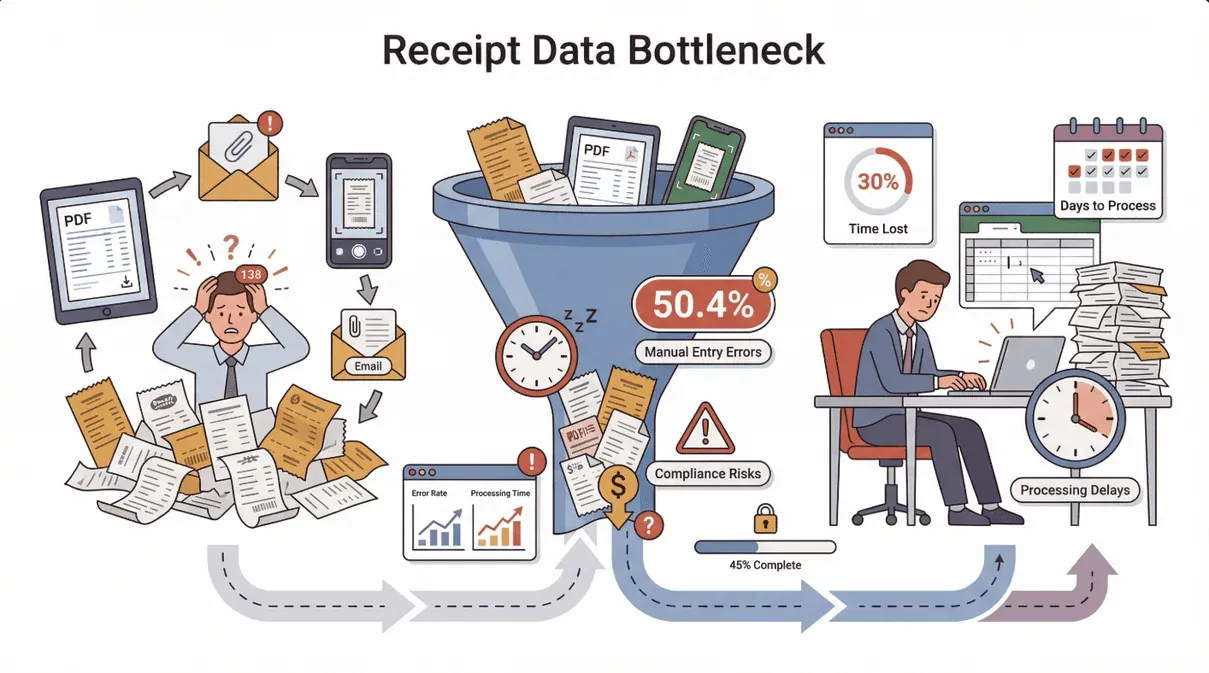 Despite all the tech advances, manual receipt data extraction is still common—especially in small and mid-sized businesses. Why? Because receipts come in every shape and format: paper, PDFs, email attachments, even photos snapped on the go. Many teams still rely on manual entry because they think automation is too complex or expensive.
But this old-school approach comes at a steep price:
- High error rates: Over half (50.4%) of employees admit to making data entry mistakes.
- Labor costs: Manual entry is slow—finance teams can spend up to 30% of their time just processing receipts.
- Delays: Processing expense reports can take days or even weeks, delaying reimbursements and closing the books (Mysa).
- Compliance risks: Manual errors can lead to missed tax deductions, compliance issues, and audit headaches.
Let’s break it down:
| Factor | Manual Extraction | Automated Extraction (AI) |
|---|---|---|
| Accuracy | Low (error-prone) | High (99%+ with AI) |
| Speed | Slow (minutes/receipt) | Fast (seconds/receipt) |
| Labor Cost | High | Low |
| Compliance | Risky | Reliable |
| Scalability | Poor | Excellent |
It’s no wonder that automation is now a top priority for finance and operations teams.
Exploring Solutions: Traditional vs. AI-Powered Receipt Data Extraction
So, what are your options? Here’s how the landscape looks:
- Manual Entry: Old-school, slow, and error-prone. Still used by teams who haven’t found a better way.
- Template-Based OCR: Uses fixed templates to “read” receipts. Works well for standard formats, but struggles with anything unusual or handwritten.
- AI-Powered Extraction (like Thunderbit): Uses artificial intelligence to understand and extract data from any receipt—website, PDF, or image—no templates required.
Here’s a quick comparison:
| Method | Setup Time | Flexibility | Accuracy | Maintenance | Handles Any Format? |
|---|---|---|---|---|---|
| Manual Entry | None | High | Low | N/A | Yes (but slow) |
| Template-Based OCR | High | Low | Medium | High | No |
| AI-Powered (Thunderbit) | Low | High | High | Low | Yes |
With Thunderbit, you don’t need to build templates or write code. Just click “AI Suggest Fields,” let the AI figure out what’s important, and hit “Scrape.” It’s as close to “set it and forget it” as I’ve seen in this space.
Try Thunderbit for Receipt Extraction
Step-by-Step Guide: Extracting Receipt Data with Thunderbit
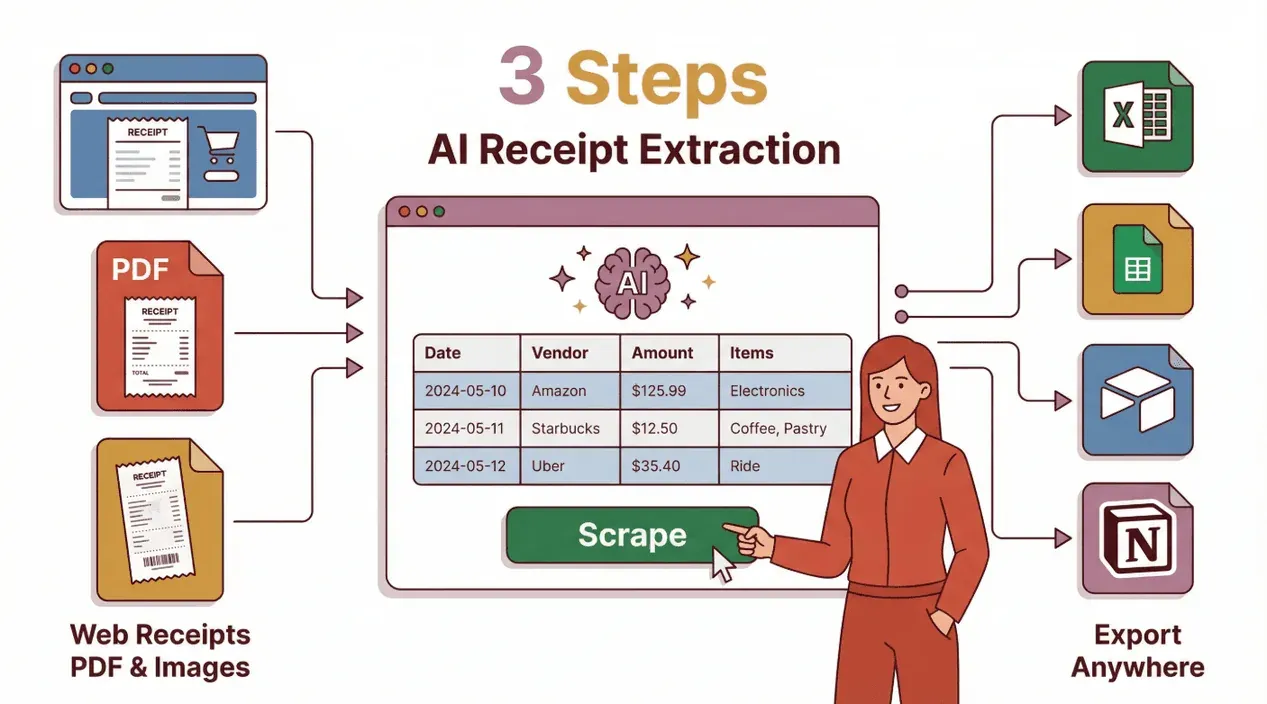 Let’s get hands-on. Here’s how you can use Thunderbit to extract receipt data—whether your receipts live on a website, in a PDF, or as images.
Extracting Data from Website Receipts
Many businesses now issue receipts through online portals—think Amazon order history, travel booking sites, or SaaS billing dashboards. With Thunderbit, you can:
- Open the receipt page in Chrome.
- Click the Thunderbit extension.
- Hit “AI Suggest Fields.” Thunderbit’s AI scans the page and suggests fields like “Date,” “Vendor,” “Amount,” and “Line Items.”
- Review or customize the fields. Add, remove, or rename columns as needed.
- Click “Scrape.” Thunderbit extracts the data into a structured table.
- Export to your favorite tool: Excel, Google Sheets, Airtable, Notion, CSV, or JSON.
The best part? Thunderbit adapts to different layouts, so you don’t have to worry if the site changes its design (Thunderbit Docs).
How to Scrape Website Data into Excel using AI Get Started Free
Thunderbit’s flexibility means you can extract data from virtually any online receipt, regardless of how the page is structured.
Extracting Data from PDF and Image Receipts
Receipts come in all shapes and file types—PDFs, scanned images, even smartphone photos. Thunderbit makes it easy:
- Upload your PDF or image file right inside the Thunderbit extension.
- Use “AI Suggest Fields” to let Thunderbit analyze the document and recommend columns.
- Customize fields if needed (for example, add “Tax Amount” or “Payment Method”).
- Click “Scrape.” Thunderbit’s AI extracts the data, even from complex layouts or low-quality images (Thunderbit PDF Scraper Guide).
- Export your results to any supported format.
Thunderbit’s AI is trained to handle multiple languages and can even tackle some handwritten receipts, though (let’s be honest) nobody likes deciphering a barista’s chicken-scratch.
Boosting Automation: Subpage Scraping and Pagination in Thunderbit
Here’s where Thunderbit really shines for businesses dealing with batches of receipts—like monthly expense folders or order histories that span multiple pages.
- Subpage Scraping: Let’s say you have a list of receipts, each linking to a detailed page. Thunderbit can automatically visit every subpage, extract the details, and merge everything into one table. No more clicking through each receipt one by one (Thunderbit List Crawling Guide).
- Pagination Support: Got a portal with 50 pages of receipts? Thunderbit handles pagination—whether it’s a “Next” button or infinite scroll—so you get a complete dataset without manual navigation.
This is a huge time-saver for finance, sales, or ops teams who need to process large volumes of receipts quickly and accurately.
What Is List Crawling and How to Do It Using AI Get Started Free
Thunderbit’s subpage and pagination features are especially useful for automating repetitive extraction tasks across large datasets.
Automating Receipt Data Extraction Across Platforms with Thunderbit Templates
Thunderbit isn’t just a blank slate—you can use ready-made templates for popular platforms. For example:
- Amazon Orders: Instantly extract order dates, items, prices, and shipping details.
- Zillow Property Receipts: Pull property details, transaction amounts, and dates for real estate analysis.
- Travel and Expense Portals: Scrape booking details, vendor names, and expense categories.
These templates can be adapted to fit your workflow—whether you’re importing data into financial software, a CRM, or a custom analytics dashboard. The result? Consistent, reliable data extraction that scales with your business (Thunderbit Templates).
Exporting Extracted Receipt Data: Flexible Options for Every Business
Once you’ve got your data, Thunderbit makes it easy to put it to work:
- Excel: Perfect for traditional finance teams and accountants.
- Google Sheets: Great for collaborative analysis and cloud workflows.
- Airtable: Ideal for teams managing receipts as part of larger databases or projects.
- Notion: For those who want to integrate receipts into broader knowledge bases or wikis.
- CSV/JSON: For developers or anyone importing data into custom systems.
You can export with a single click, and Thunderbit even handles image fields—so if your receipts include logos or photos, they’ll show up in your database (Thunderbit Data Export).
Export Receipt Data with Thunderbit
Best Practices for Accurate and Efficient Receipt Data Extraction
Want to get the most out of Thunderbit (or any extraction tool)? Here are my top tips:
- Use high-quality scans or images: Blurry or skewed receipts are tough for any AI. If possible, use clear, well-lit photos or PDFs.
- Review extracted data: AI is great, but a quick human check never hurts—especially for tax or compliance work.
- Leverage AI prompts: If you need custom fields (like categorizing expenses), use Thunderbit’s field instructions to guide the AI.
- Automate recurring tasks: For monthly reports or ongoing expense tracking, set up scheduled scrapes so your data is always up to date.
- Stay organized: Export with clear file names and timestamps, and keep your data sources documented for audits or reviews.
For more detailed tips, check out Thunderbit’s PDF Scraper Guide.
Conclusion & Key Takeaways
Manual receipt data extraction is a productivity killer—and, frankly, nobody’s idea of a good time. With AI-powered tools like Thunderbit, you can turn a tedious, error-prone process into a fast, accurate, and scalable workflow. Whether your receipts are online, in PDFs, or snapped as images, Thunderbit’s “AI Suggest Fields” and “Scrape” workflow makes extraction a breeze. Features like subpage scraping, pagination, and ready-made templates mean you can handle even the messiest receipt archives with confidence.
Ready to see how much time (and sanity) you can save? Download the Thunderbit Chrome Extension and try it for yourself. Your finance team will thank you—and you might even get to skip that next coffee-fueled data entry marathon.
For more automation tips and deep dives, check out the Thunderbit Blog.
Try AI Receipt Data Extraction with Thunderbit Get Started Free
FAQs
1. What is receipt data extraction, and why does it matter?
Receipt data extraction is the process of pulling structured information (like date, vendor, and amount) from receipts for use in finance, tax, and analytics. Automating this process saves time, reduces errors, and improves compliance.
2. How does Thunderbit handle different receipt formats (web, PDF, image)?
Thunderbit uses AI to analyze and extract data from any format—just upload your file or open the web page, and Thunderbit does the rest. No templates or coding required.
3. Can Thunderbit extract data from batches of receipts or multi-page archives?
Yes! Thunderbit’s subpage scraping and pagination features let you process entire folders or lists of receipts automatically, without manual navigation.
4. What export options does Thunderbit offer for extracted receipt data?
You can export to Excel, Google Sheets, Airtable, Notion, CSV, or JSON—making it easy to integrate with your finance, CRM, or analytics tools.
5. What are some best practices for accurate receipt data extraction?
Use high-quality scans, review extracted data for accuracy, leverage AI prompts for custom fields, and automate recurring tasks with scheduled scrapes. Staying organized and documenting your process will also help with compliance and audits.
Learn More




