
Every time I hear someone say, “Just copy and paste it from the website,” I can’t help but wince a little. In 2025, business teams are still losing up to 36% of their workweek to manual data gathering and spreadsheet wrangling (Coupler.io), while the web is exploding with more information than ever. I’ve seen sales reps spend 70% of their time on non-selling tasks like research and data entry (Thunderbit Blog), and marketers burning hours just to build a basic competitor report. The truth is, most of us aren’t data engineers—and we shouldn’t have to be just to get the info we need.
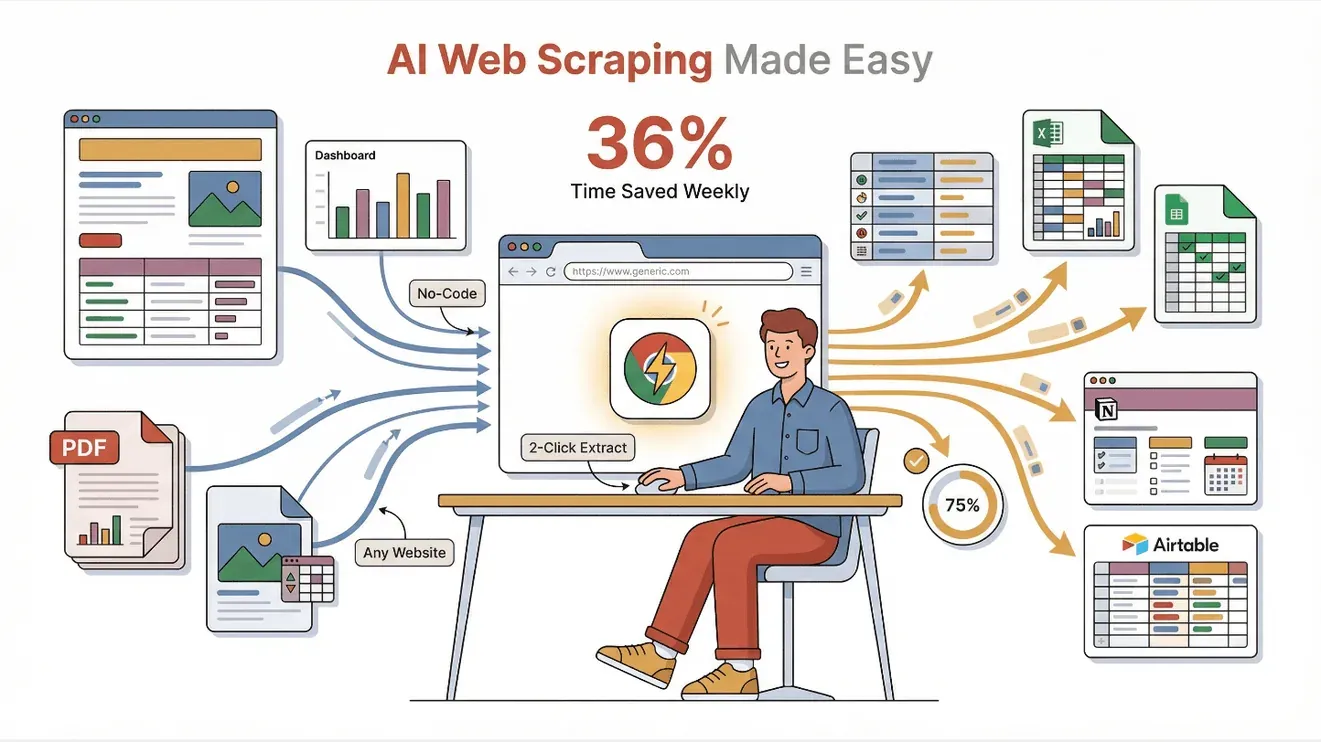
That’s exactly why I’m obsessed with Thunderbit, our AI-powered easy scraper Chrome extension. It’s built for people like me (and maybe you): business users who want web data fast, without the technical headache. In this post, I’ll show you how Thunderbit’s 2-click, no-code workflow lets anyone—yes, even my mom—scrape data from any website, PDF, or image, and export it straight to Excel, Google Sheets, Notion, or Airtable. I’ll share my favorite tricks, real-world use cases, and why I think Thunderbit is the easiest web scraper out there.
What Makes Easy Scraper Thunderbit Different?
Thunderbit’s core design philosophy is simple: make web scraping as easy as ordering a pizza online. No code, no templates, no “inspect element” gymnastics. Instead, Thunderbit uses AI to read any web page (or PDF, or image), understand what data is important, and set up the extraction for you.
Here’s what sets Thunderbit apart:
- AI-Powered, Natural Language Interface: Just click “AI Suggest Fields” and Thunderbit’s AI analyzes the page, recommending the best data columns to extract. You don’t have to describe selectors or fiddle with settings—the AI does the heavy lifting (Thunderbit Blog).
- 2-Click Setup: Once the fields are suggested, click “Scrape” and you’re done. No trial and error, no coding, no templates. It’s genuinely a two-click process (Thunderbit Blog).
- No Technical Barriers: Thunderbit is built for non-technical users—sales, ops, ecommerce, real estate, you name it. If you can use a browser, you can use Thunderbit.
- Automatic Subpage and Pagination Handling: Thunderbit’s AI can follow links to subpages (like product detail pages or LinkedIn profiles) and handle paginated or infinite scroll sites automatically (Thunderbit Blog).
- Pre-Built Templates: For popular sites like Amazon, Zillow, Instagram, and Shopify, Thunderbit offers instant templates—just pick one and start scraping, no setup required.
I’ve tried my fair share of “no-code” scrapers, and most still make you build sitemaps or click through every field. Thunderbit’s approach is different: let the AI do the thinking, so you can focus on what matters—using the data.
Why Easy Scraper Thunderbit Matters for Business Users
Let’s get real: web data is the fuel for modern business, but getting it shouldn’t feel like pulling teeth. Here’s how Thunderbit delivers ROI for teams across the board:
| Use Case | Manual Pain Point | Thunderbit Outcome / ROI Example |
|---|---|---|
| Lead Generation | Copying contacts one by one | Scrape 1,200 leads in 5 days, fill CRM instantly, save 40+ hours (Grepsr) |
| Competitor Monitoring | Tedious price checks, missed updates | Automated price scraping, $6,000/month extra revenue, 10× ROI (Grepsr) |
| Product Research | Hours reading reviews, manual data entry | Scrape hundreds of reviews, avoid $10,000+ failed launches (Grepsr) |
| Market Analysis | Weeks compiling data from multiple sources | Aggregate data in hours, spot trends early, outpace competitors |
The bottom line? Time saved is money earned. Thunderbit users routinely save 8–10 hours a week that used to be lost to manual grunt work (Coupler.io), and the data is more accurate—no more typos or missed entries (Medium). For sales, marketing, and ops teams, that means more time for strategy, outreach, and closing deals.
Quick Web Data Extraction: Thunderbit in Action
Let me walk you through how Thunderbit works in the real world—no technical jargon, just practical steps.
Step 1: Install Thunderbit
- Download the Thunderbit Chrome Extension (it’s free to try, and takes less than a minute).
Step 2: Open Your Target Website
- Go to the page you want to scrape—Amazon, Zillow, LinkedIn, a PDF, or even an image.
Step 3: Click “AI Suggest Fields”
- Thunderbit’s AI scans the page and suggests the most relevant fields (e.g., Product Name, Price, Rating for Amazon; Address, Price, Agent for Zillow).
Step 4: Click “Scrape”
- Thunderbit grabs all the data, even across multiple pages or infinite scroll. You’ll see a neat table appear in seconds.
Step 5: Export Your Data
- Choose Excel, Google Sheets, Notion, Airtable, CSV, or JSON. The export is instant and always free.
Real Example: I recently needed to compare Amazon product listings for a market analysis. With Thunderbit, I scraped 100+ products (name, price, rating, reviews) in under a minute—no setup, no code, just two clicks. I even pulled detailed specs from each product’s subpage with one more click.
Thunderbit also supports scraping PDFs, Word docs, and images—just upload the file, and the AI will extract tables or text into structured data (Thunderbit Blog). It’s a lifesaver for anyone dealing with reports, invoices, or scanned documents.
Try Thunderbit for Effortless Web Scraping
AI Suggest Fields: The Secret to Effortless Data Structuring
This is the feature that makes Thunderbit truly “easy.” In traditional scrapers, you have to manually select every field—click the name, the price, the rating, and hope the tool figures out the pattern. If the page changes, your setup breaks.
With Thunderbit, you just hit “AI Suggest Fields.” The AI reads the whole page, understands the context, and proposes a list of fields to extract—complete with smart data types (text, number, email, phone, image, etc.). It even generates custom extraction logic behind the scenes, so you don’t have to worry about missing data or weird formatting (Thunderbit Blog).
Before vs. After Example:
- Manual: 10–15 minutes clicking and configuring each field, risk of errors, breaks if the site changes.
- Thunderbit AI: 1 second, all fields suggested, robust to layout changes, works on almost any site.
You can always tweak the suggestions—rename columns, add or remove fields, or use “Field AI Prompts” to customize extraction (like categorizing products or translating text on the fly). But honestly, I find the AI gets it right about 95% of the time.
Exporting and Enhancing Your Data with Thunderbit
Once you’ve scraped your data, Thunderbit makes it a breeze to get it where you need it:
- Export Options: One-click export to Excel, Google Sheets, Airtable, Notion, CSV, or JSON (Thunderbit Blog). No paywalls, no limits on export formats.
- AI-Driven Categorization and Labeling: Use “Field AI Prompts” to categorize, label, or format data as you scrape. For example, tag leads as “warm” or “cold” based on keywords, or standardize date and price formats (Thunderbit Blog).
- Automatic Data Cleaning: Thunderbit can deduplicate, validate, and enrich your data during extraction—so your spreadsheet is analysis-ready the moment you export.
I love exporting directly to Google Sheets for live dashboards, or to Notion for sharing with my team. And because Thunderbit supports scheduled scraping, I can set it to update my data every morning—no manual effort required.
Mastering Complex Web Pages: Pagination and Subpage Scraping
Dynamic websites used to be the bane of every scraper’s existence. Not anymore.
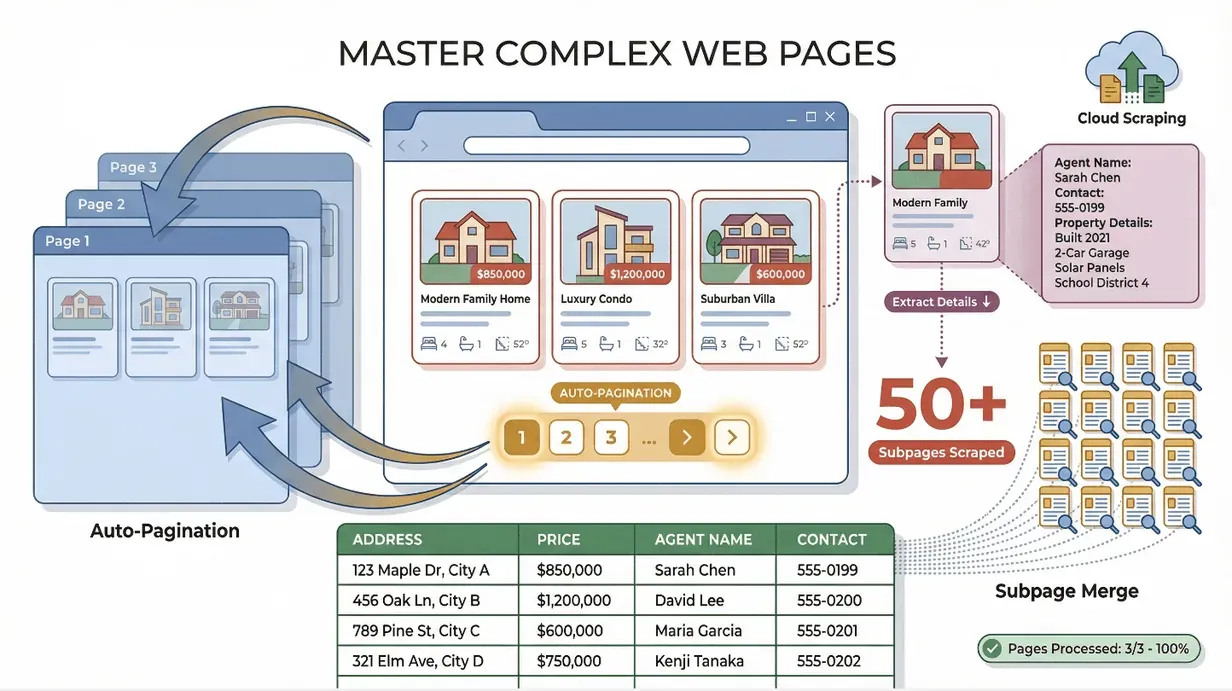
- Pagination: Thunderbit automatically detects and clicks through paginated results or infinite scroll, ensuring you get the complete dataset—not just the first page (Thunderbit Blog).
- Subpage Scraping: Need more detail? Thunderbit can follow links (like product detail pages or LinkedIn profiles), scrape additional fields, and merge the results into your main table (Thunderbit Blog).
Scenario: I once scraped a real estate listings site for addresses and prices, then ran subpage scraping to pull agent names and contact info from each listing. Thunderbit handled 50+ subpages in minutes—something that would have taken me hours by hand.
Thunderbit also works on sites with login requirements (like LinkedIn or private dashboards), since it runs in your browser and uses your session. For public, large-scale jobs, you can use Cloud Scraping to process up to 50 pages at once.
Step-by-Step Guide: Using Easy Scraper Thunderbit
Here’s my go-to workflow for any new scraping project:
- Install Thunderbit: Download the extension and pin it to your Chrome toolbar.
- Open the Website: Navigate to your target page (apply filters or log in if needed).
- Activate Thunderbit: Click the Thunderbit icon to open the side panel.
- AI Suggest Fields: Hit “AI Suggest Fields” and review the suggested columns.
- Adjust Fields (Optional): Rename, add, or remove fields as needed. Use “Field AI Prompts” for custom logic.
- Scrape: Click “Scrape” and watch the data roll in.
- Subpage Scraping (Optional): Click “Scrape Subpages” to enrich your table with extra details.
- Export: Choose your preferred format—Excel, Google Sheets, Notion, Airtable, CSV, or JSON.
- Analyze: Open your exported data and put it to work.
Troubleshooting Tips:
- Make sure the data you want is visible (log in, click “show more” if needed).
- For slow or massive sites, use Cloud Scraping or schedule the job for off-hours.
- If a field looks off, tweak the AI prompt or try re-suggesting fields.
Most users tell me they’re up and running in minutes, not hours. And if you ever get stuck, Thunderbit’s documentation and support are there to help.
Pro Tips: Getting the Most from Easy Scraper Thunderbit
Once you’ve got the basics down, here are some advanced tricks I love:
- Scheduled Scraping: Set up recurring jobs (e.g., “every Monday at 9am”) in plain English. Thunderbit will keep your data fresh automatically (Thunderbit Blog).
- Field AI Prompts: Use custom instructions to categorize, summarize, or translate data as you scrape. For example, “Label as Electronics, Apparel, or Home Goods based on product name.”
- Free Extractors: Instantly grab all emails, phone numbers, or images from any page with Thunderbit’s one-click extractors—no setup required (Thunderbit Blog).
- Cloud vs. Browser Mode: Use Cloud Scraping for large, public jobs (up to 50 pages at once), and Browser Scraping for sites that require login or have anti-bot measures (Thunderbit Blog).
- Multi-Language Support: Thunderbit’s AI works in 34 languages and can translate content on the fly—perfect for international research (Thunderbit Blog).
- Template Organization: Save your favorite field setups as templates for quick reuse. Name them clearly (e.g., “Amazon Product Scraper,” “Zillow Listings”).
And always, always respect website terms and privacy—Thunderbit is powerful, so use it responsibly.
See Thunderbit Pricing and Plans
Conclusion & Key Takeaways
Thunderbit isn’t just another web scraper—it’s a productivity revolution for anyone who needs web data but doesn’t want to mess with code or complicated tools. Here’s why I think it’s the best easy scraper out there:
- Truly No-Code: If you can click a button, you can use Thunderbit.
- AI-Powered Simplicity: “AI Suggest Fields” takes the guesswork out of data extraction.
- 2-Click Workflow: Go from website to spreadsheet in seconds.
- Handles Any Content: Works on websites, PDFs, images, dynamic pages, and more.
- Advanced Features for Power Users: Scheduling, subpage scraping, field prompts, and more.
- Free to Try: Scrape up to 6 pages for free (or 10 with a trial boost), with all features included (Thunderbit Pricing).
If you’re tired of copy-paste marathons or wrestling with clunky scrapers, give Thunderbit a spin on your next project. You’ll save hours, get better data, and (maybe) even enjoy the process. Download the Thunderbit Chrome Extension and see for yourself. And if you want to dig deeper, check out the Thunderbit Blog for more guides, tips, and real-world stories.
Try Thunderbit AI Web Scraper for Free Get Started Free
FAQs
1. What makes Thunderbit different from other web scrapers?
Thunderbit uses AI to automate field selection and data extraction, so you don’t need to know code or build templates. It’s designed for non-technical users and works in just two clicks.
2. Can Thunderbit handle complex websites with pagination or subpages?
Yes! Thunderbit automatically detects and scrapes paginated results, infinite scroll, and can follow links to subpages (like product details or profiles) to enrich your dataset.
3. What types of data can Thunderbit extract?
Thunderbit can scrape text, numbers, dates, URLs, emails, phone numbers, images, and more—from websites, PDFs, Word docs, and even images.
4. How do I export my data from Thunderbit?
You can export your data to Excel, Google Sheets, Notion, Airtable, CSV, or JSON with one click. All export options are free and unlimited.
5. Is Thunderbit really free to try?
Absolutely. The free tier lets you scrape up to 6 pages (or 10 with a trial boost), and you get access to all features—including AI suggestions, templates, and exports. Upgrade plans are affordable if you need more volume (Thunderbit Pricing).
Ready to leave manual data entry behind? Download Thunderbit and experience effortless web scraping today.
Learn More
- How to Extract Data from a Web Page Using Thunderbit
- How to Master Automated Data Scraping Using Thunderbit
- Octoparse vs. Thunderbit: A 2025 Comparison for No-Code Web Scrapers
- Thunderbit or Bardeen? Hands-On Comparison for AI Web Automation
- Diffbot Is Great, But Non-Technical Users Might Prefer Thunderbit




