

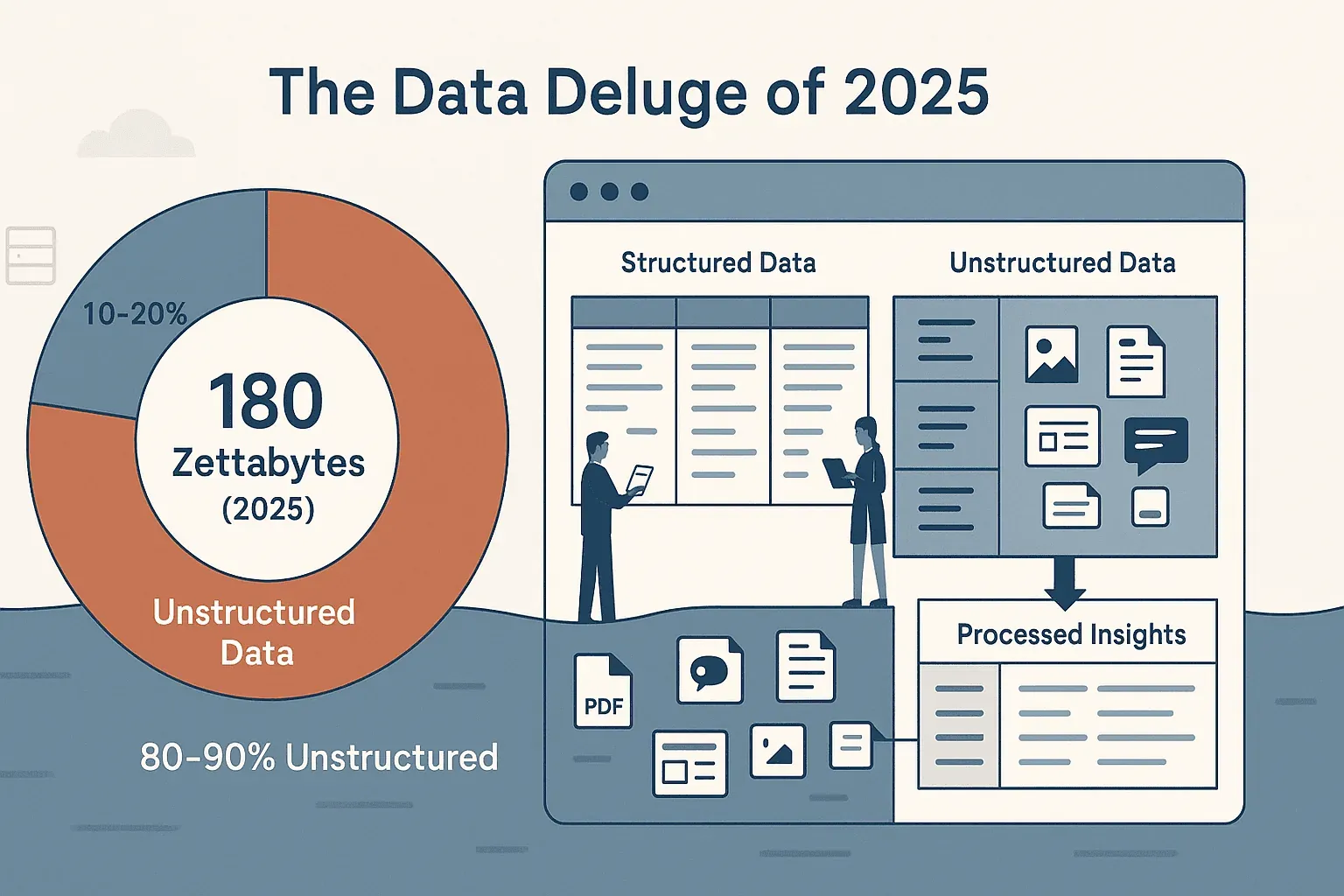
If you’ve ever tried to gather data from a website—whether it’s for sales leads, competitor prices, or just wrangling a messy product catalog—you know the web isn’t exactly built for easy copy-paste. The volume of online data is staggering — IDC and Statista pegged the global datasphere at roughly 180 zettabytes in 2025, and we're already on track for around 221 zettabytes in 2026. The bigger problem isn't volume, it's shape: roughly 80% of that data is unstructured, buried in web pages, PDFs, images, and dynamic feeds. Most business teams—myself included—have spent way too much time wrestling with this chaos, only to end up with half-baked spreadsheets and a sense of déjà vu.
Scrape data from any website using AI Get Started Free
That’s why I’m obsessed with efficient website crawling. In this guide, I’ll walk you through a practical, step-by-step approach to crawl any website—no code, no headaches—using Thunderbit, our AI-powered web crawler. Whether you’re in sales, operations, or just tired of manual data entry, I’ll show you how to handle complex layouts, pagination, subpages, and even extract data from PDFs and images. Let’s turn the web’s chaos into your next business advantage.
What Does It Mean to Crawl a Website Efficiently?
Let’s break it down: crawling a website means using an automated tool (think: a robot assistant) to systematically visit web pages and extract the information you care about—names, prices, emails, product specs, you name it. Efficient crawling isn’t just about speed; it’s about accuracy, minimal manual effort, and the ability to handle real-world web obstacles like pagination, subpages, and unstructured data (Wikipedia).
What separates an efficient crawl from a copy-paste marathon? Here’s what matters:
- Speed: Fetching hundreds of pages or records in minutes, not hours.
- Accuracy: Grabbing exactly the data you need, without missing entries or introducing typos.
- Automation: Letting the tool handle repetitive tasks like clicking “Next” or following links to detail pages.
- Resilience: Adapting to complex layouts, dynamic content, and even changes in the website’s structure.
- Minimal Setup: No coding, no fiddling with selectors, no constant maintenance.
The real world isn’t made of perfect tables. Modern sites have infinite scroll, multi-step navigation, login requirements, and data buried in PDFs or images. Efficient crawling means conquering all of that—so you spend less time on grunt work and more time on analysis and action (AIMultiple).
Why Efficient Website Crawling Matters for Sales and Operations
Why do business teams care so much about web crawling? Because the right data—delivered fast—can make or break your next campaign, product launch, or sales quarter. Here are some of the most common (and high-ROI) use cases I see every week:
| Use Case | Benefit & ROI | Example Outcome |
|---|---|---|
| Lead Generation | Fill the sales funnel faster, save hours on prospect research, reduce manual errors | Scrape 5,000 targeted leads overnight, launch campaigns 2 weeks sooner, boost appointments by 30% |
| Competitor Price Monitoring | Enable dynamic pricing, react to market changes in real time, protect margins | Retailer adjusts prices daily, sees a 4% sales increase |
| Product Catalog/Inventory Extraction | Keep listings up to date, cut manual data entry, avoid overselling or mispricing | E-commerce team updates 10,000 SKUs daily, reduces update time by 90% |
| Market Research & Reviews Analysis | Get large-scale insights into customer sentiment and trends, spot opportunities before competitors | Analyze 10,000+ reviews, identify new product opportunities, improve marketing messaging |
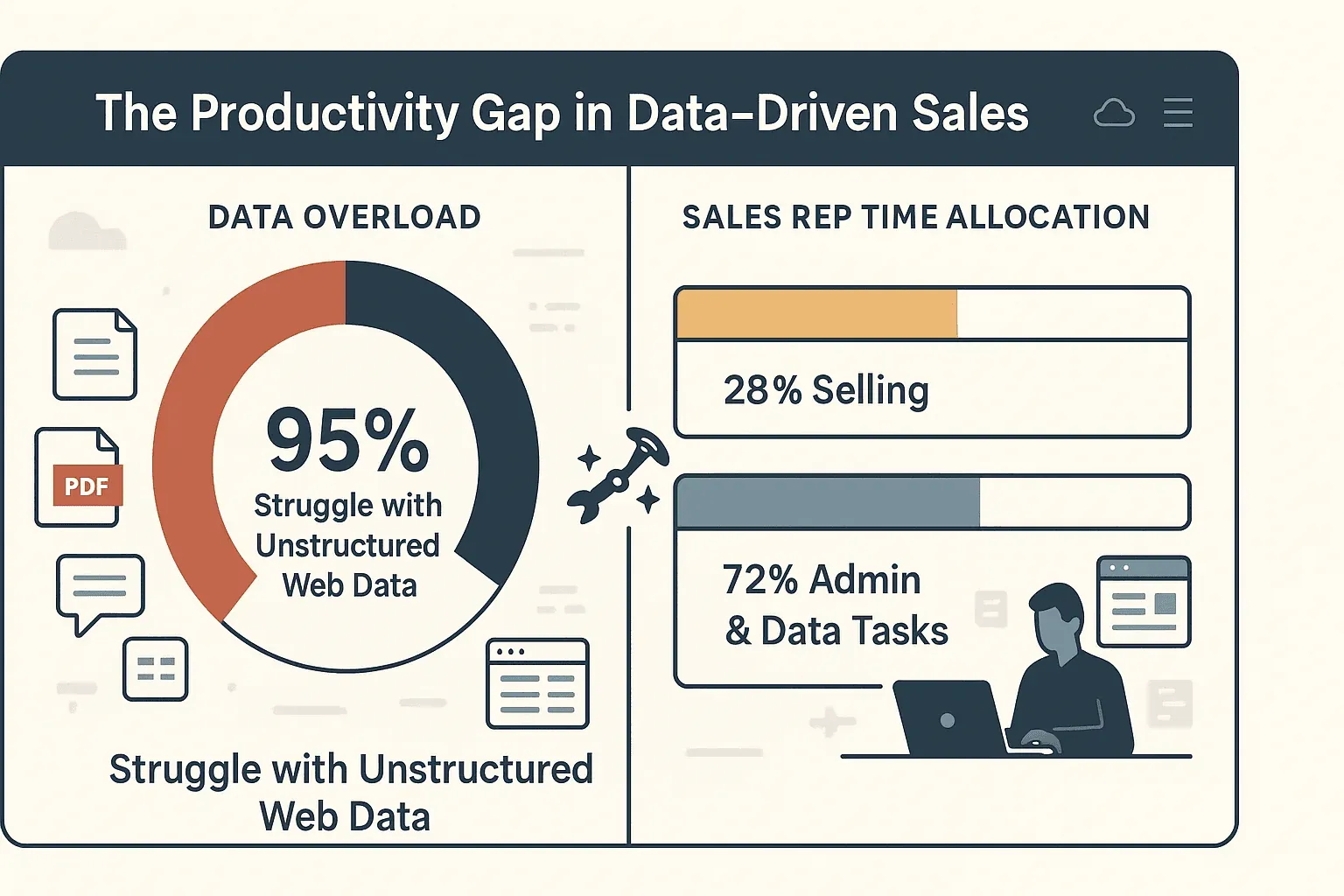
The bottom line? Efficient crawling means faster, smarter decisions—and a lot less time spent copying and pasting. In fact, 95% of businesses admit they struggle to use unstructured web data, and sales reps spend only 28% of their time actually selling. The rest is lost to manual data entry and admin.
Thunderbit: The Easiest Way to Crawl a Website
Let’s be honest: most web scraping tools are built for developers, not business users. That’s why we created Thunderbit, an AI-powered web crawler that’s as easy as ordering takeout. Here’s what sets Thunderbit apart:
- Natural Language Prompts: Just describe the data you want (“Grab all product names and prices from this page”), and Thunderbit’s AI figures out the rest.
- AI Suggest Fields: Click “AI Suggest Fields,” and Thunderbit scans the page, recommends the best columns to extract, and sets up the crawler for you.
- 2-Click Workflow: Once you’re happy with the fields, click “Scrape.” That’s it—no coding, no templates, no wrestling with selectors.
- Handles Pagination & Subpages: Thunderbit automatically detects and navigates multi-page lists and can follow links to detail pages (subpages) to enrich your data.
- Instant Export: Send your data directly to Excel, Google Sheets, Airtable, or Notion—or download as CSV/JSON, all for free.
- OCR for PDFs & Images: Need data from a PDF, image, or scanned document? Thunderbit’s built-in OCR extracts and structures that content, too.
Thunderbit is designed for non-technical users—if you can browse the web and type a sentence, you can crawl a website like a pro. And yes, there’s a free tier so you can try it risk-free.
Try Thunderbit Free – Start Crawling Instantly
Comparing Website Crawling Solutions: Thunderbit vs. Traditional Methods
Let’s put Thunderbit side by side with the usual suspects:
| Approach | Setup Time & Complexity | Required Skills | Maintenance & Reliability |
|---|---|---|---|
| Manual Copy-Paste | Extremely high, not scalable | None, but error-prone | 100% manual, redo for every update |
| Custom Code (Python, etc.) | High initial setup, hours/days per site | Programming required | Breaks on site changes, needs constant fixes |
| Traditional No-Code Tool | Medium, point-and-click setup | Low/moderate | Needs updates for layout changes, can’t always handle dynamic sites |
| Thunderbit (AI-Powered) | Very low, 2-click setup | None | AI adapts to changes, minimal upkeep |
Traditional tools might get you halfway there, but they often choke on dynamic content, pagination, or require you to babysit every change. Thunderbit’s AI reads the site like a human, adapts to new layouts, and handles the messy stuff—so you don’t have to (Thunderbit Blog).
Step 1: Setting Up Your Website Crawl with Thunderbit
Getting started is a breeze:
- Install the Thunderbit Chrome Extension. Sign up for a free account.
- Navigate to your target website. Load the page you want to crawl—could be a product listing, directory, or even a PDF.
- Open Thunderbit. Click the Thunderbit icon in your Chrome toolbar.
- Describe your data needs. Either click “AI Suggest Fields” to let Thunderbit recommend columns, or type a natural language prompt (e.g., “Extract product name, price, and image URL for each item”).
- Preview and adjust. Thunderbit shows a preview table—edit field names, remove extras, or add custom instructions if needed.
Pro tip: Be specific but concise in your prompts. Mention the data points as they appear on the site (“price,” “address,” etc.), and let Thunderbit’s AI do the heavy lifting.
Step 2: Handling Pagination and Subpages During Website Crawling
Here’s where Thunderbit really shines. Most real-world data isn’t on a single page—it’s spread across paginated lists or hidden in subpages.
- Pagination: Thunderbit automatically detects “Next” buttons, page numbers, or infinite scroll. When you click “Scrape,” it keeps loading pages until it’s got everything—no need to manually input URLs or click through each page.
- Subpage Crawling: Need more details? After scraping the main list, click “Scrape Subpages.” Thunderbit follows links (like product detail pages or company profiles), extracts extra info, and merges it into your table.
Example: Scraping an ecommerce site? Thunderbit grabs the product list, then visits each product’s detail page to pull specs, reviews, or images—all in one go.
Best practice: Let Thunderbit finish the main crawl, then use subpage scraping for deeper data. You’ll see progress updates and can monitor for any missing entries.
Step 3: Smart Extraction of Unstructured Data with Thunderbit
Not all data comes in neat tables. Product descriptions, reviews, or mixed-format fields can be a nightmare for traditional scrapers. Thunderbit’s AI tackles this head-on:
- Cleans & Formats Data: Strips out currency symbols, parses numbers, and splits complex fields (e.g., “USD 299 (50% off!)” becomes “299” and “50% off”).
- Parses Complex Text: Extracts structured info from paragraphs (e.g., finds “Location: New York” in a job description).
- Classifies & Labels: Adds categories or tags based on content (e.g., “Electronics” vs. “Clothing”).
- Handles Inconsistencies: Adapts to missing fields or layout changes, keeping your data aligned and accurate.
- Summarizes or Translates: Need a one-sentence summary or translation? Add a custom instruction—Thunderbit’s AI can do that, too.
The result? Clean, ready-to-use data—no more hours spent cleaning up in Excel.
Step 4: Choosing Between Cloud Crawling and Browser Crawling
Thunderbit gives you two ways to crawl, depending on your needs:
- Browser Crawling: Runs in your Chrome browser, using your logged-in session. Perfect for sites that require authentication or have strong anti-bot measures. You see the crawl as it happens, and it mimics human browsing.
- Cloud Crawling: Offloads the work to Thunderbit’s cloud servers. Handles up to 50 pages in parallel—great for large jobs or scheduled tasks. You can close your laptop and let Thunderbit do the heavy lifting.
When to use each:
- Use Browser Mode for login-required sites or when you need to interact with the page.
- Use Cloud Mode for public sites, bulk jobs, or when you want speed and automation.
Switching modes is easy—just choose your preference before starting the crawl.
Step 5: Extracting Data from Documents and Images Using OCR
Sometimes, the data you need is trapped in PDFs, images, or scanned documents. Thunderbit’s built-in OCR (Optical Character Recognition) changes the game:
- PDFs: Extract tables, emails, or text from reports, invoices, or catalogs.
- Images: Pull text from screenshots, product labels, or even infographics.
- Scanned Forms: Automate data entry from receipts, contracts, or business cards.
Just point Thunderbit at the PDF or image URL, and it’ll extract and structure the content—no separate software required. You can even combine OCR with AI prompts for advanced extraction (“Find all email addresses in this PDF”).
Step 6: Exporting and Using Your Crawled Data
Once your crawl is complete, it’s time to put that data to work:
- Export Options: Download as CSV or JSON, or export directly to Google Sheets, Excel, Airtable, or Notion. All formats are free—even on the basic plan.
- Sales & CRM: Import lead lists into your CRM, launch outreach campaigns, or enrich existing contacts.
- Marketing & Analysis: Analyze competitor pricing, track market trends, or visualize data in dashboards.
- Operations & Inventory: Monitor stock, update catalogs, or trigger alerts for key changes.
- Automation: Use integrations (like Zapier or Google Apps Script) to automate follow-ups, reporting, or data enrichment.
Thunderbit’s structured output means you can go from crawl to action in minutes—not days.
Start Crawling with Thunderbit AI
Conclusion & Key Takeaways
Crawling a website efficiently isn’t just a techie’s dream—it’s a business superpower. With Thunderbit, anyone can:
- Set up a crawl in seconds using natural language or AI-suggested fields.
- Handle complex sites with pagination, subpages, and dynamic content—no code required.
- Extract clean, structured data from messy web pages, PDFs, and images.
- Choose the best mode (browser or cloud) for speed, scale, and security.
- Export data instantly to your favorite tools and workflows.
The days of endless copy-paste and broken scrapers are over. Download Thunderbit, try a free crawl, and see how much time (and sanity) you can save. Your next big insight—or sales win—might be just a click away.
Want more tips and deep dives? Check out the Thunderbit Blog for tutorials, use cases, and the latest in AI-powered web crawling.
FAQs
1. What is the difference between web crawling and web scraping?
Web crawling refers to systematically browsing websites to discover pages and links, while web scraping is about extracting specific data from those pages. Thunderbit combines both—finding, navigating, and extracting the info you need.
2. Can Thunderbit handle websites with login requirements?
Yes! Use Thunderbit’s Browser Mode to crawl sites that require authentication. It uses your logged-in Chrome session, so you can access data behind logins or paywalls (as long as it’s within the site’s terms of service).
3. How does Thunderbit deal with pagination and infinite scroll?
Thunderbit automatically detects and navigates paginated lists and infinite scroll pages. It clicks “Next,” scrolls, or loads more content until all data is captured—no manual setup required.
4. What types of data can Thunderbit extract?
Thunderbit can extract text, numbers, dates, URLs, emails, phone numbers, images, and even data from PDFs and images using OCR. You can customize fields and use AI prompts for advanced structuring and cleaning.
5. Is Thunderbit free to use?
Thunderbit offers a free tier that lets you crawl a limited number of pages. All export formats (CSV, Excel, Google Sheets, Airtable, Notion) are included for free. Paid plans start at $15/month for higher volume and advanced features.
Ready to crawl smarter, not harder? Try Thunderbit today and let AI do the heavy lifting for your next web data project. Learn More
- How to Web Crawl A Site? A Beginner's Guide
- How to Crawl Websites: A Step-by-Step Beginner’s Guide
- How to Crawl All Links on Website: A Comprehensive Guide
Try AI Web Scraper for Free Get Started Free




