
Last week, a colleague sent me a 47-page vendor contract and asked me to "just pull the pricing tables into a spreadsheet." I stared at the PDF for about three seconds before closing it and opening a PDF scraper instead. That instinct didn't come from laziness—it came from years of watching people waste entire afternoons wrestling data out of files that were never meant to give it up.
The numbers back up the frustration. Airbase's 2024 survey of 745 finance professionals found that 38% of teams spend more than a quarter of their total time on manual tasks. SAP Concur's AP automation report adds that 60% of invoice entries into ERP or accounting systems are still done by hand.
PDFs are everywhere—invoices, contracts, financial statements, scanned receipts—and too much of the work is still copy-paste. In 2026, PDF scrapers range from free Python libraries to AI-powered no-code tools, and picking the wrong one can cost you days instead of saving them. I tested 12 of the best PDF scrapers across table extraction, OCR, pricing, and ease of use so you can find the right fit in minutes.
What Is a PDF Scraper (and Why Should You Care)?
A PDF scraper is software that automatically extracts text, tables, fields, and structured data from PDF files. If you've ever tried to copy a table from a PDF into Excel and watched the columns collapse into a single garbled line, you already understand the problem.
PDF scrapers and web scrapers get mixed up constantly, so a quick distinction helps. A web scraper reads HTML, which at least has some structural tags—headings, tables, divs. A PDF scraper starts from a visual page description format. Adobe's own documentation makes this clear: PDF is built to preserve page appearance consistently across devices, not to expose clean tabular or semantic structure. That's why copy-paste destroys rows, columns, and reading order.
Where does PDF scraping actually save time?
- Invoice processing: pulling supplier names, invoice IDs, totals, tax, and line items
- Financial reports: extracting tables from annual reports, statements, and disclosures
- Scanned records: recovering contact details or transaction data from image-only PDFs
- Legacy migrations: converting old archives into searchable, structured records
The business impact goes beyond one workflow. Gartner still frames poor data quality as costing organizations at least $12.9 million per year on average. And in February 2025, Gartner said 63% of organizations either don't have, or aren't sure they have, the right data-management practices for AI. Through 2026, Gartner says organizations will abandon 60% of AI projects not supported by AI-ready data. If PDFs are still where much of the raw data lives, document extraction quality is now directly tied to AI readiness.
Adobe's 2025 survey of financial professionals found that 61% regularly edit PDF-based documents and 64% regularly sign them. The PDF Association also notes that PDF was ranked the 3rd most popular file format on the web in CommonCrawl data. PDFs aren't going anywhere.
How We Evaluated the Best PDF Scrapers
Before diving into the tools, here's the framework I used. The eight criteria below map directly to the pain points I see most often in forums, GitHub issues, and product reviews:
| Criterion | What It Measures | Why Users Care |
|---|---|---|
| PDF types supported | Native text, scanned/image-only, mixed | Many tools fail before extraction even begins |
| Table extraction accuracy | Simple, borderless, multi-page, merged-cell tables | The #1 PDF extraction complaint |
| OCR capability | Built-in, add-on, or none | Scanned PDFs are unusable without OCR |
| Output/export formats | Excel, CSV, JSON, Sheets, Notion, APIs | Data is useless if it can't leave the tool cleanly |
| Setup difficulty | No-code, low-code, or code-first | Teams need very different levels of control |
| Pricing / free tier | Public price, trial, realistic entry point | Billing models vary wildly |
| Automation / integrations | Zapier, API, scheduling, webhooks | Manual exports don't scale |
| Best-fit use case | What the tool is actually good at | Most tools aren't universally good—they're workflow-specific |
To keep things readable, the 12 tools fall into three categories: no-code AI scrapers, template-based or SaaS document parsers, and developer libraries / APIs / open-source tools.
The 12 Best PDF Scrapers at a Glance
Here's the master comparison so you can scan for your profile and jump to the section that fits:
| Tool | Type | Table Extraction | OCR Built-in | No-Code | Free Tier | Best For |
|---|---|---|---|---|---|---|
| Thunderbit | AI no-code scraper | ✅ AI-powered | ✅ Yes | ✅ Yes | ✅ Free credits | Business users, varied layouts |
| Tabula | Open-source desktop | ✅ Good (text PDFs) | ❌ No | ✅ GUI | ✅ Fully free | Simple table-heavy text PDFs |
| Parseur | Hybrid SaaS | ⚠️ Template + AI | ✅ Yes | ✅ Yes | ⚠️ Limited | Recurring invoice/email parsing |
| Nanonets | AI IDP SaaS | ✅ Strong | ✅ Yes | ✅ Low-code | ⚠️ Credits trial | High-volume document automation |
| Adobe Acrobat | PDF productivity suite | ⚠️ Basic | ✅ Yes | ✅ Yes | ❌ Export is paid | Occasional PDF-to-Excel |
| PyMuPDF | Python library | ⚠️ Manual parsing | ❌ (Tesseract optional) | ❌ Code required | ✅ Fully free | Developers, text-heavy PDFs |
| Camelot | Python table library | ✅ Strong (lattice + stream) | ❌ No | ❌ Code required | ✅ Fully free | Developers, complex tables |
| Docparser | Template SaaS | ⚠️ Template-based | ✅ Yes | ✅ Yes | ⚠️ Trial | Recurring docs + Zapier workflows |
| pdfplumber | Python library | ✅ Good (granular) | ❌ No | ❌ Code required | ✅ Fully free | Developers, fine-grained control |
| AWS Textract | Cloud API | ✅ Strong | ✅ Yes | ❌ API required | ⚠️ Free tier limited | Enterprise-scale pipelines |
| Docling | Open-source Python | ✅ Good | ✅ Via integration | ❌ Code required | ✅ Fully free | LLM/RAG pipelines |
| Parsio | Hybrid SaaS | ⚠️ AI-assisted | ✅ Yes | ✅ Yes | ⚠️ Limited | Recurring document types |
Want zero setup? Start in the no-code or SaaS rows. Need maximum control? Start in the developer rows. Working with scanned PDFs? Eliminate any row where OCR = No.
1. Thunderbit
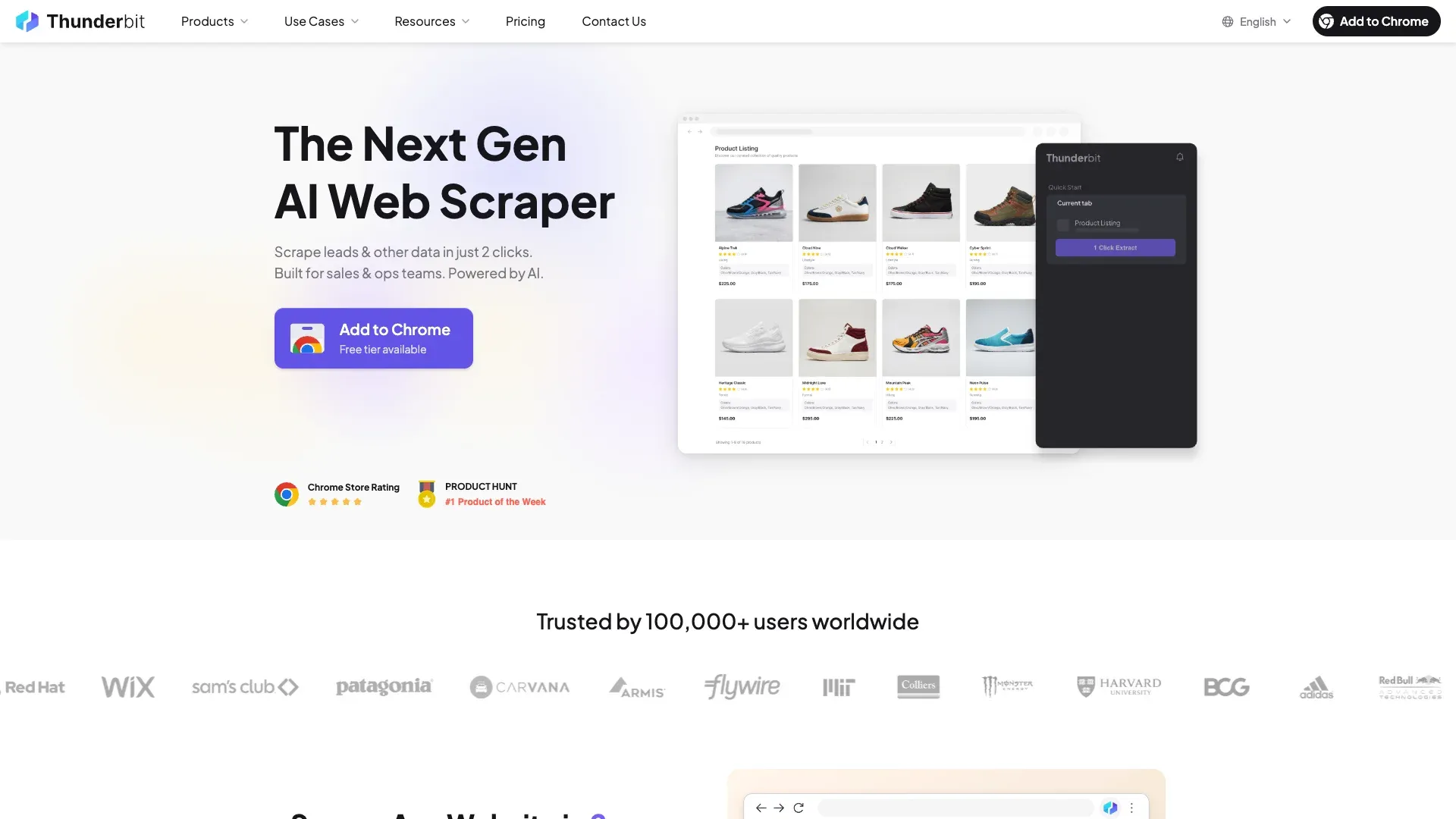 Thunderbit is the PDF scraper I'd hand to anyone who says "I just need the data out of this PDF" and doesn't want to hear about Python, templates, or API keys. It's an AI web data agent—a Chrome extension—that reads PDFs, images, and websites, then outputs structured data. No templates, no coding.
We built Thunderbit to handle the scenario that trips up most tools: you get PDFs from five different vendors, each with a slightly different layout, and you need the same fields from all of them. The AI reads each document fresh, proposes column names and data types through the "AI Suggest Fields" feature, and extracts the data into a structured table. Built-in OCR handles scanned PDFs and images natively, with support for 34 languages.
Key features:
- AI Suggest Fields auto-detects columns and data types from any PDF layout—no manual configuration
- Built-in OCR for scanned PDFs and images
- Exports to Excel, Google Sheets, Airtable, Notion, CSV, and JSON—all free
- AI labeling and reformatting: the AI can translate, categorize, or restructure extracted data during extraction, not just after
- Table extraction reads layout visually (like a human), adapting to borderless, irregular, and multi-vendor formats
How to scrape a PDF with Thunderbit:
- Install the Thunderbit Chrome Extension
- Open or upload your PDF in the browser
- Click "AI Suggest Fields"—the AI reads the document and proposes column names and types
- Click "Scrape"—data is extracted into a structured table
- Export to Google Sheets, Excel, Airtable, Notion, CSV, or JSON
Pricing: Free tier with credits (about 6 pages free, 10 with trial). Starter plan at ~$15/month or about $9/month billed yearly. Credits are row-based (1 credit = 1 output row). See Thunderbit Pricing for details.
Best for: Non-technical users who deal with varied PDF layouts (invoices from multiple vendors, mixed-format reports) and want results in 2 clicks.
Pros: Easiest setup in this list; built-in OCR; direct exports to Sheets, Notion, Airtable, and Excel; works on varied layouts without templates.
Cons: Credit-based billing takes a minute to map to per-page costs; fewer third-party reviews than larger SaaS vendors.
Try Thunderbit for PDF scraping
2. Tabula
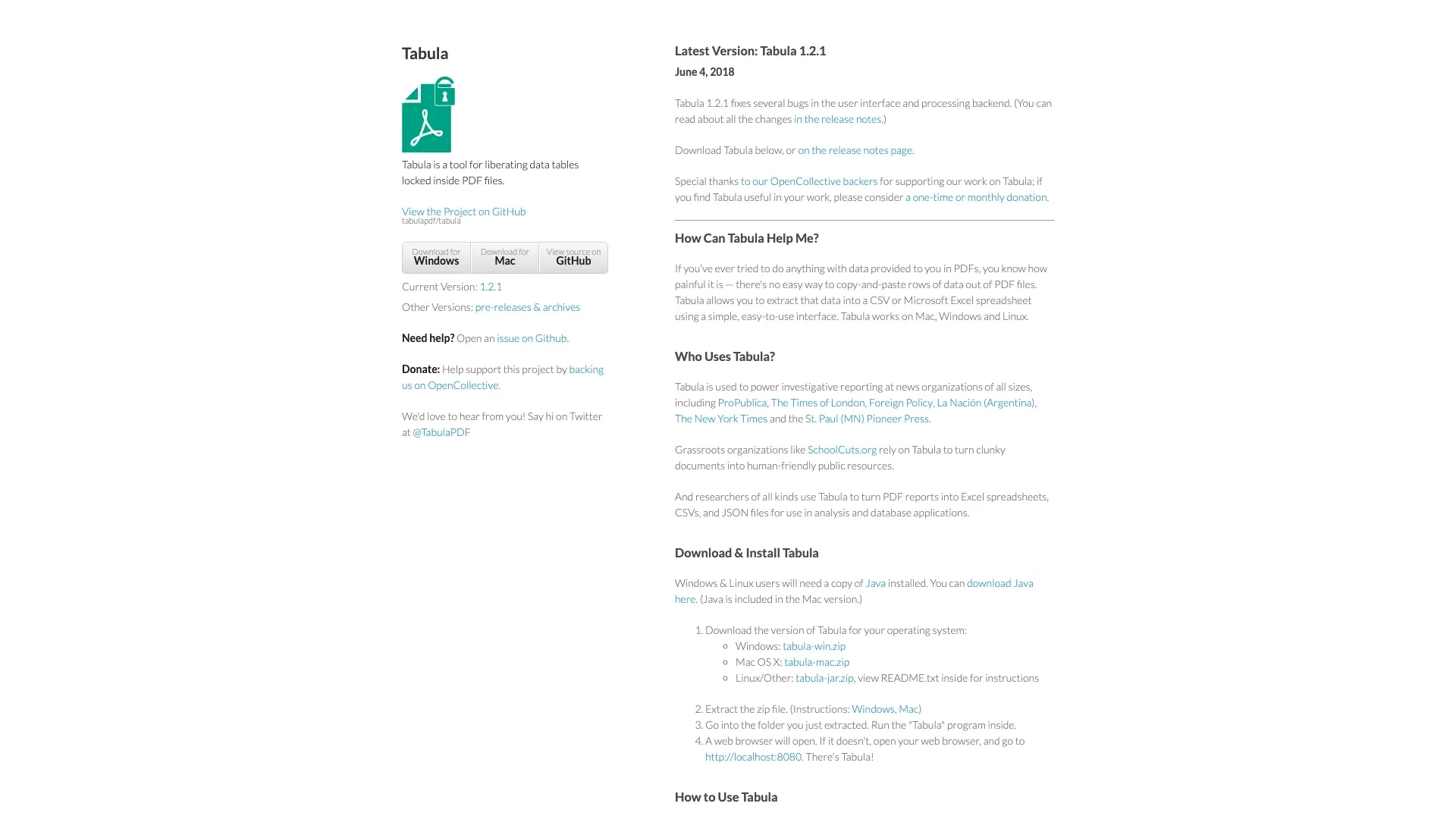 Tabula is the classic free answer for text-based PDF table extraction, and it's also clearly a legacy project at this point. The repo says it's a volunteer-run project, and the desktop application is unlikely to see updates in the near future. The latest desktop release is still 1.2.1 from 2018, while tabula-java last released 1.0.5 in 2021.
Key features:
- Point-and-click GUI for selecting table regions
- Runs locally—data never leaves your machine
- No account, no subscription, no signup
Pricing: Completely free, forever. Open source.
Best for: Users who have simple, text-based PDFs with clearly bordered tables and want a free, local solution.
Pros: Free; local; dead simple for basic tables.
Cons: No OCR (scanned PDFs are a non-starter); weak on borderless tables; no automation or API; no cloud option; effectively unmaintained.
3. Parseur
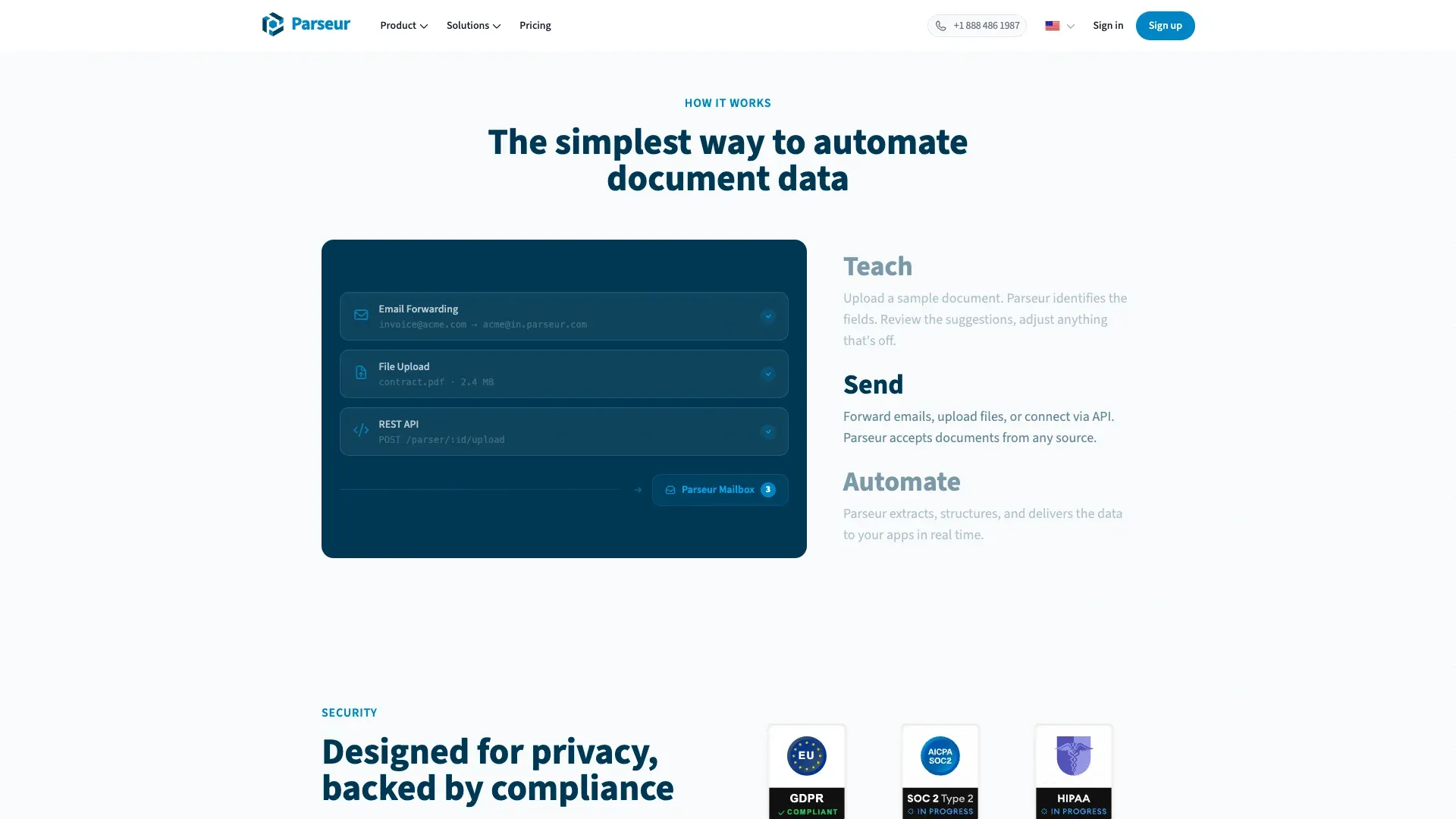 Parseur is the strongest hybrid in the SaaS group because it combines AI parsing, template parsing, and dynamic OCR. That makes it more flexible than a pure zonal parser, but still more structured than a fully general AI scraper.
Key features:
- Built-in OCR with support for 60+ languages (160+ experimental)
- Integrations with Zapier, Make, Power Automate, API, webhooks, Google Sheets
- Good fit for invoices, shipping notices, order confirmations, and recurring document types
Pricing: Free tier of about 20 pages/month. Lowest paid self-serve floor around ~$39/month. Normalized cost at the smallest plan is roughly $390 per 1,000 pages, though effective rates drop at higher volume.
Best for: Teams that receive the same types of documents repeatedly and want automation without coding.
Pros: Built-in OCR; strong automation stack; handles recurring layouts well.
Cons: Each new or drifting layout may need template work or AI fallback; complex table structures remain harder.
4. Nanonets
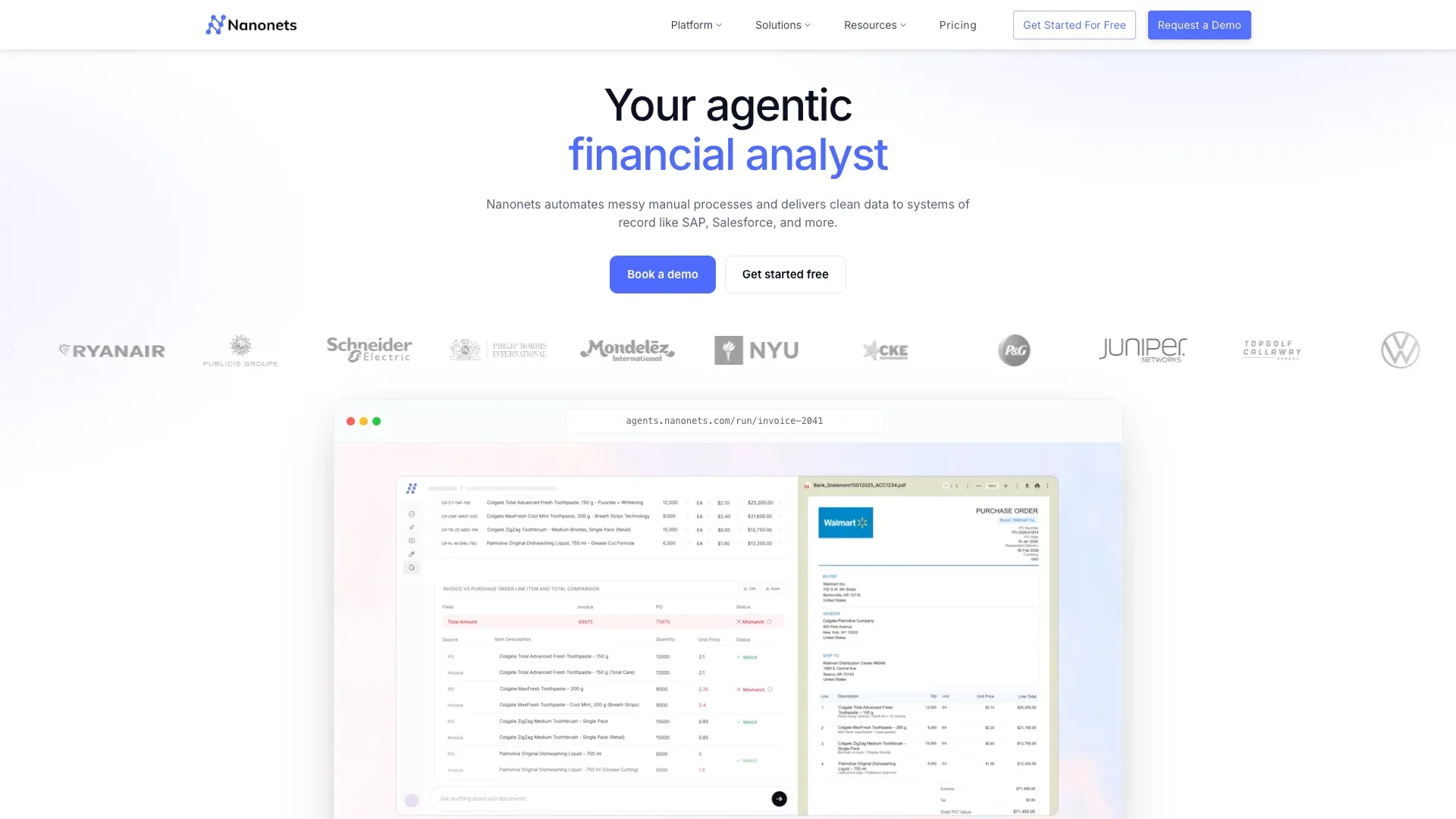 Nanonets is closer to an intelligent document processing (IDP) platform than a simple PDF scraper—which is both its strength and its complexity. The company changed pricing on January 31, 2025, moving to prepaid usage credits instead of a simple page-based plan.
Key features:
- AI-powered table extraction and field detection
- Built-in OCR with support for 40+ languages
- Workflow automation with approval steps
- Wide enterprise integration stack
Pricing: Credits on signup. Usage-based billing. A rough estimate based on public block pricing docs is around $300–$380 per 1,000 pages for a simple extraction workflow.
Best for: Mid-to-large teams processing thousands of documents monthly (AP automation, logistics, insurance claims).
Pros: Strong AI extraction; enterprise integrations; workflow automation.
Cons: Pricing is harder to predict; learning curve for advanced workflows; limited free tier.
5. Adobe Acrobat
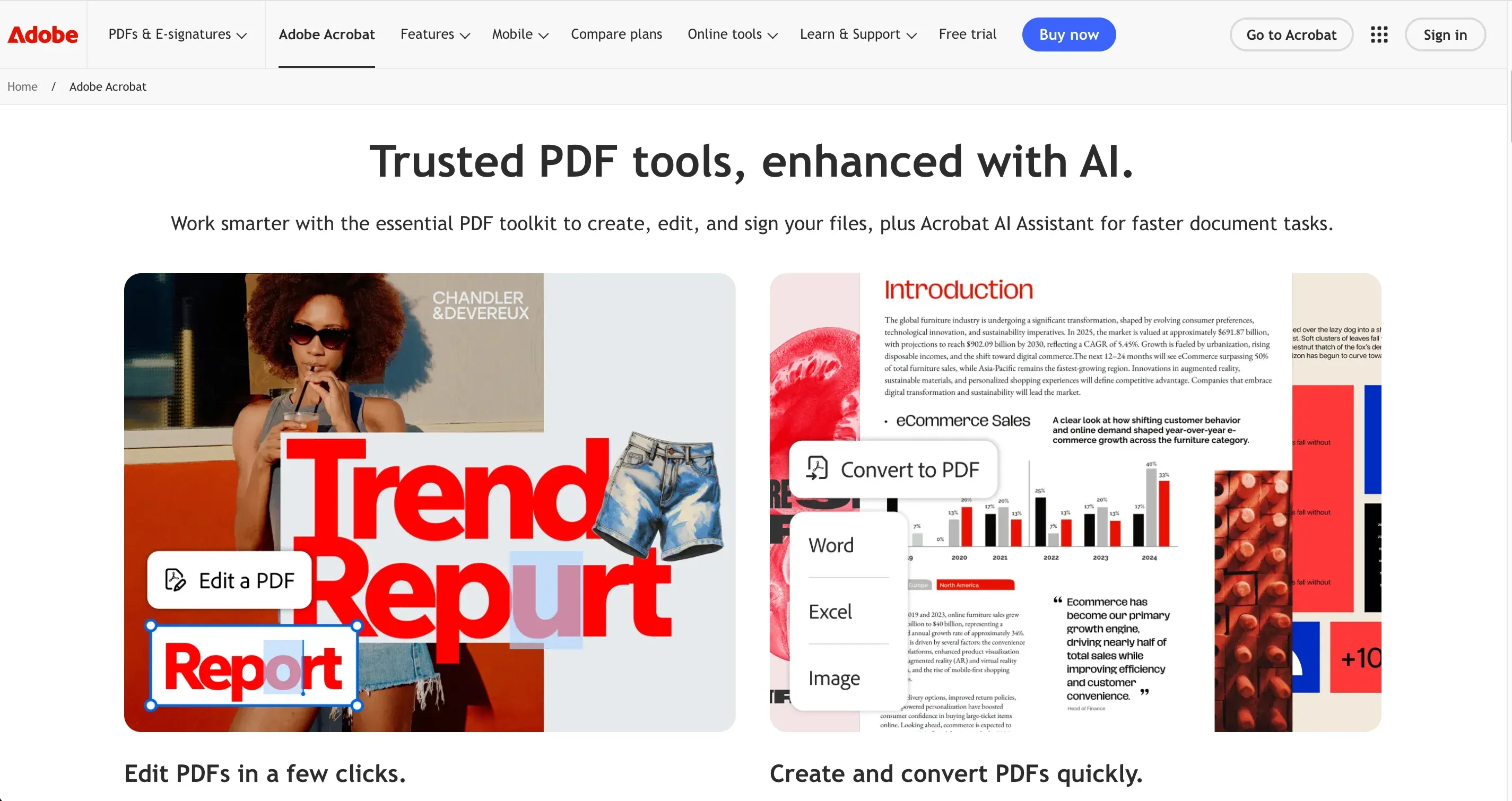 Adobe Acrobat is the baseline PDF tool almost everyone recognizes. It's strong for OCR and conversion, but it's not really a scraper in the same sense as the rest of this list.
Key features:
- Built-in OCR in Pro
- Export to Word, Excel, PowerPoint, HTML, TXT, image formats
- Broad multi-language OCR support
Pricing: Acrobat Standard at $14.99/month; Acrobat Pro at $19.99/month. Reader is free, but export features require a paid plan.
Best for: Users who occasionally need to convert a PDF to Word or Excel and already have an Adobe subscription.
Pros: Widely trusted; built-in OCR; many users already have it.
Cons: Table extraction is basic on complex layouts; no automation or API for batch processing; not designed as a "scraper."
6. PyMuPDF
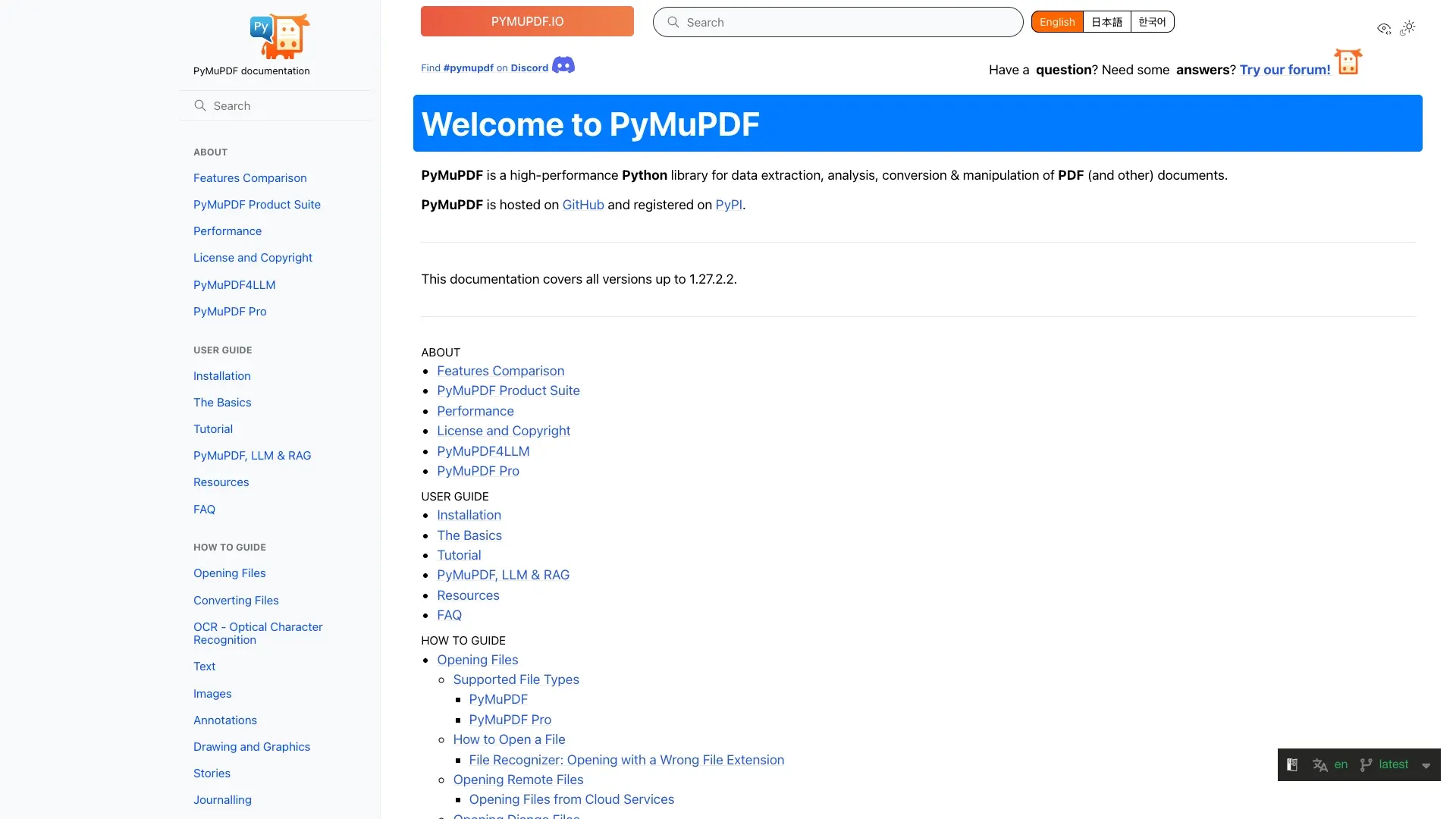 PyMuPDF (also known as "fitz") remains the fastest general-purpose Python PDF extraction library in this roundup. The current release is 1.27.2.2 from March 2026, and benchmarks continue to show it as significantly faster than many other Python PDF libraries.
Key features:
- Extremely fast raw text extraction
- Image extraction and metadata access
- Optional OCR via Tesseract (though the docs note OCR is ~1,000x slower than standard extraction)
- Table detection through
find_tables()
Pricing: Completely free, open source.
Best for: Developers building pipelines who primarily work with text-heavy, native PDFs.
Pros: Very fast; lightweight; active community; strong text extraction.
Cons: No built-in OCR; table extraction requires manual parsing logic; code required.
7. Camelot
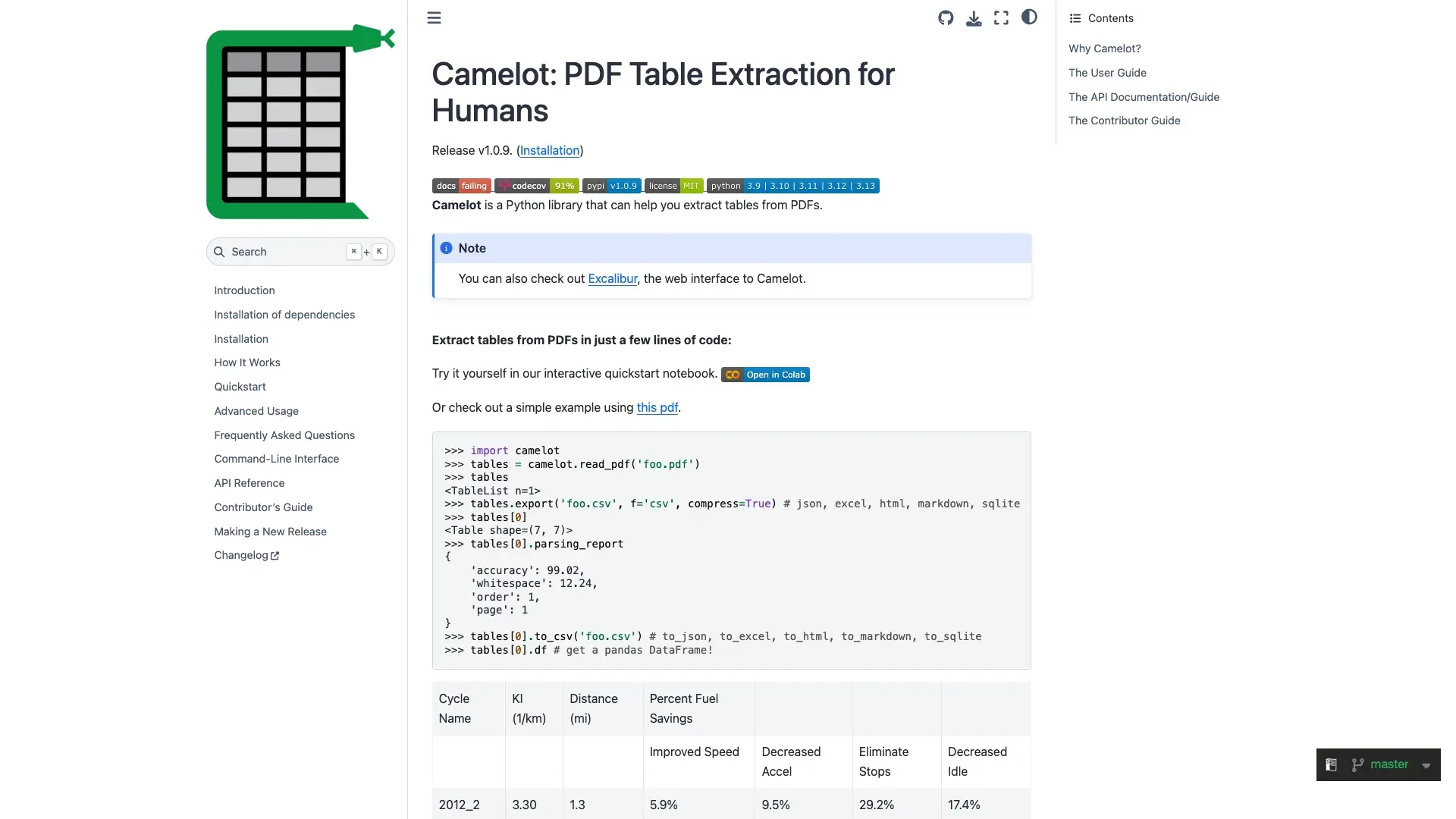 Camelot is still one of the most recognizable Python table extraction tools because it's table-first rather than document-generalist. The current repo is maintained, with v1.0.9 released in August 2025.
Key features:
- Two extraction modes:
latticefor bordered tables,streamfor borderless/whitespace tables - Accuracy metrics in the parsing report—one of Camelot's most useful features for automation workflows
- Outputs to pandas DataFrames, CSV, JSON, Excel
Pricing: Completely free, open source.
Best for: Developers who need precise table extraction from structured, text-based PDFs.
Pros: Excellent table accuracy; dual extraction modes; accuracy scoring.
Cons: No OCR; text-based PDFs only; code required; can be slow on large documents.
8. Docparser
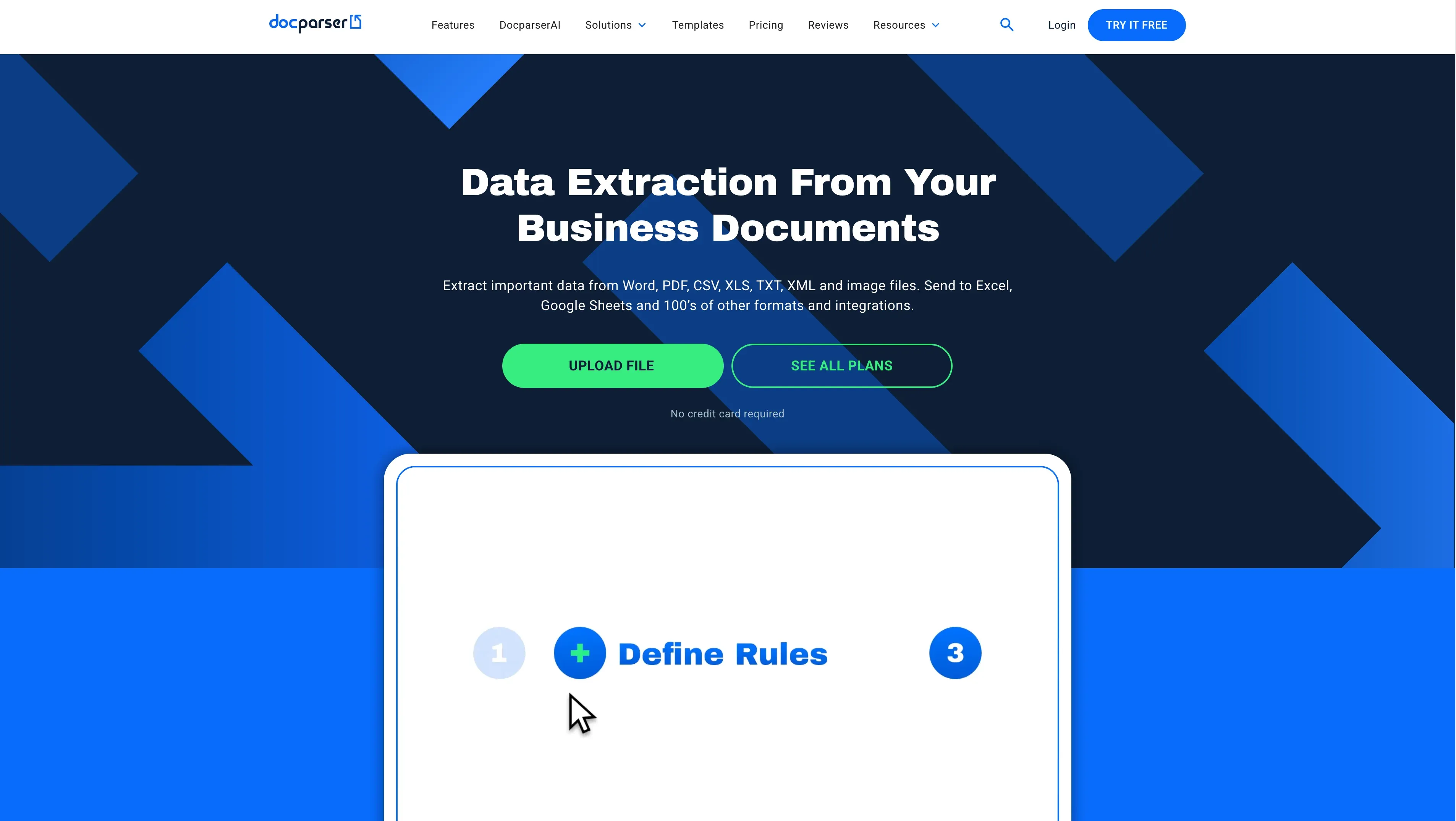 Docparser is the most clearly rule-driven SaaS tool in the set. It uses zonal OCR, anchor keywords, and fixed-layout parsing rules rather than trying to behave like a layout-general AI reader.
Key features:
- Built-in OCR
- Integrates with Zapier, Workato, Power Automate, Google Sheets, Salesforce, and REST API
- Good for routing extracted data into business workflows
Pricing: Starter at $39/month; Professional at $74/month; Business at $159/month. 14-day free trial. Bills by document, so normalized cost per 1,000 pages depends on document length—roughly $78–$390 at the starter tier.
Best for: Teams that need to automate recurring document workflows with tight integration into tools like Zapier or Salesforce.
Pros: Built-in OCR; strong workflow integrations; good for stable layouts.
Cons: Template-based—each new layout requires setup; table extraction depends on zone definitions; strongest on page 1.
9. pdfplumber
 pdfplumber remains the most granular developer library in the set. The current release is 0.11.9 from January 2026, and the repo says it's in active development.
Key features:
- Fine-grained control over character objects, lines, rectangles, and table-finder strategies
- Crop-based filtering and visual debugging
- Outputs data as Python lists/dicts for easy manipulation
Pricing: Completely free, open source.
Best for: Python developers who need granular, customizable table extraction logic.
Pros: Excellent low-level control; good accuracy on complex tables; active development.
Cons: No OCR; steeper learning curve than Camelot; code required.
10. AWS Textract
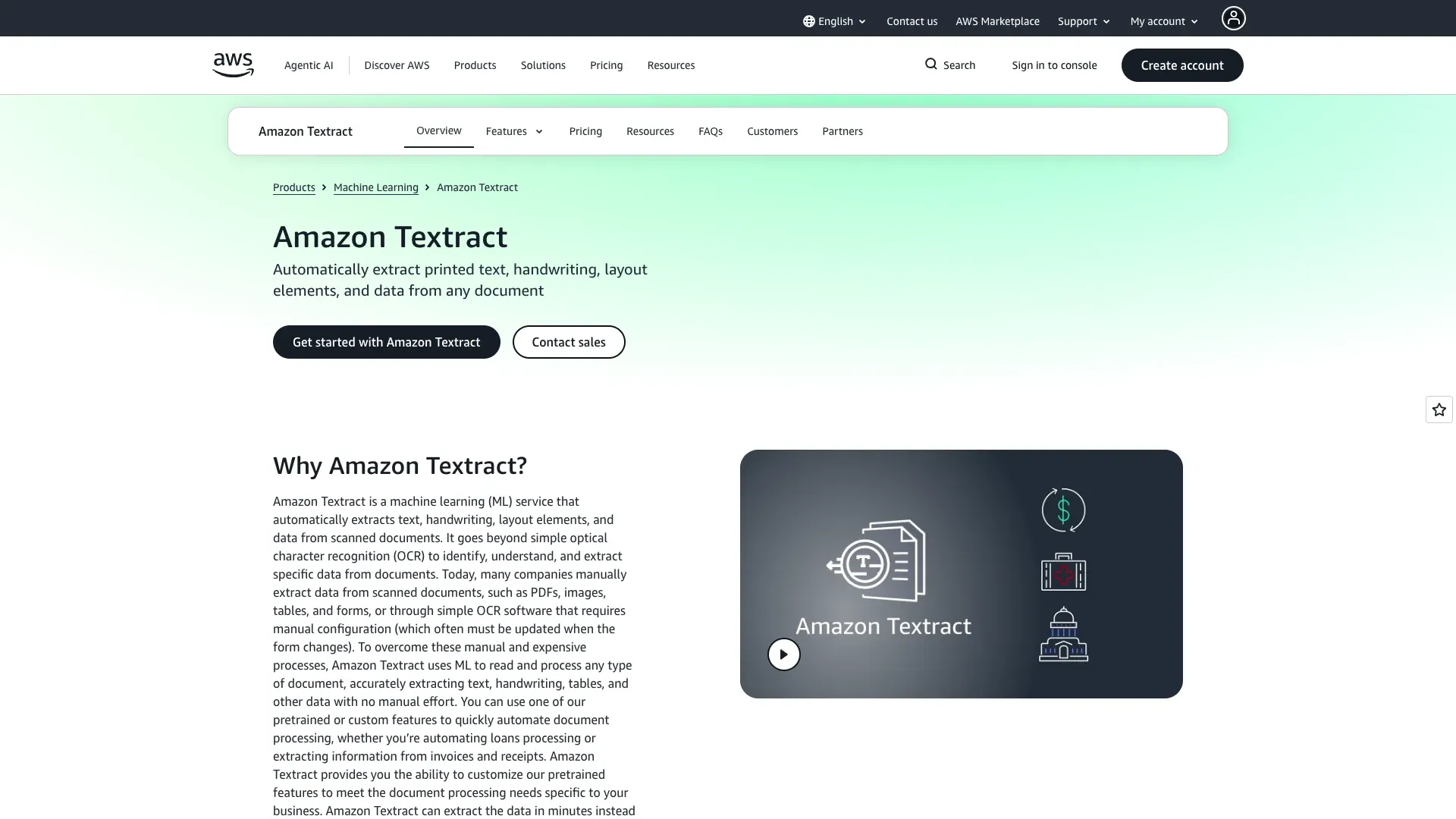 AWS Textract is the most enterprise-native API in this list. It's built for scale, document diversity, and programmatic use rather than GUI convenience.
Key features:
- AI-powered table and form extraction
- Built-in OCR with handwriting support (closest in this list, but still imperfect)
- Enterprise-grade scalability
- Clean AWS ecosystem integration
Pricing: Per-page billing. Free tier: 1,000 pages/month for 3 months. After that: text-only OCR at $1.50/1,000 pages; tables at $15/1,000 pages; forms + tables at $65/1,000 pages; expense documents at $10/1,000 pages.
Best for: Enterprise teams processing 10,000+ documents/month through an API pipeline.
Pros: Accurate forms and tables extraction; built-in OCR; enterprise scalability.
Cons: API only; no visual interface; costs rise fast on advanced modes; AWS ecosystem lock-in.
11. Docling
 Docling is the most future-facing open-source tool here because it's aimed directly at document-to-LLM pipelines. The current release is 2.90.0 from April 17, 2026, and the project is moving quickly.
Key features:
- Outputs to Markdown, HTML, WebVTT, DocTags, and lossless JSON
- OCR support through multiple integrated engines
- Built for LangChain, LlamaIndex, CrewAI, Haystack, and similar ecosystems
- Strong community growth
Pricing: Completely free, open source.
Best for: Developers building LLM/RAG applications who need to convert PDFs into structured, AI-ready Markdown.
Pros: Clean Markdown output; OCR via integration; built for modern AI workflows; active development.
Cons: Code required; primarily aimed at developers; less polished GUI or export options compared to SaaS tools.
12. Parsio
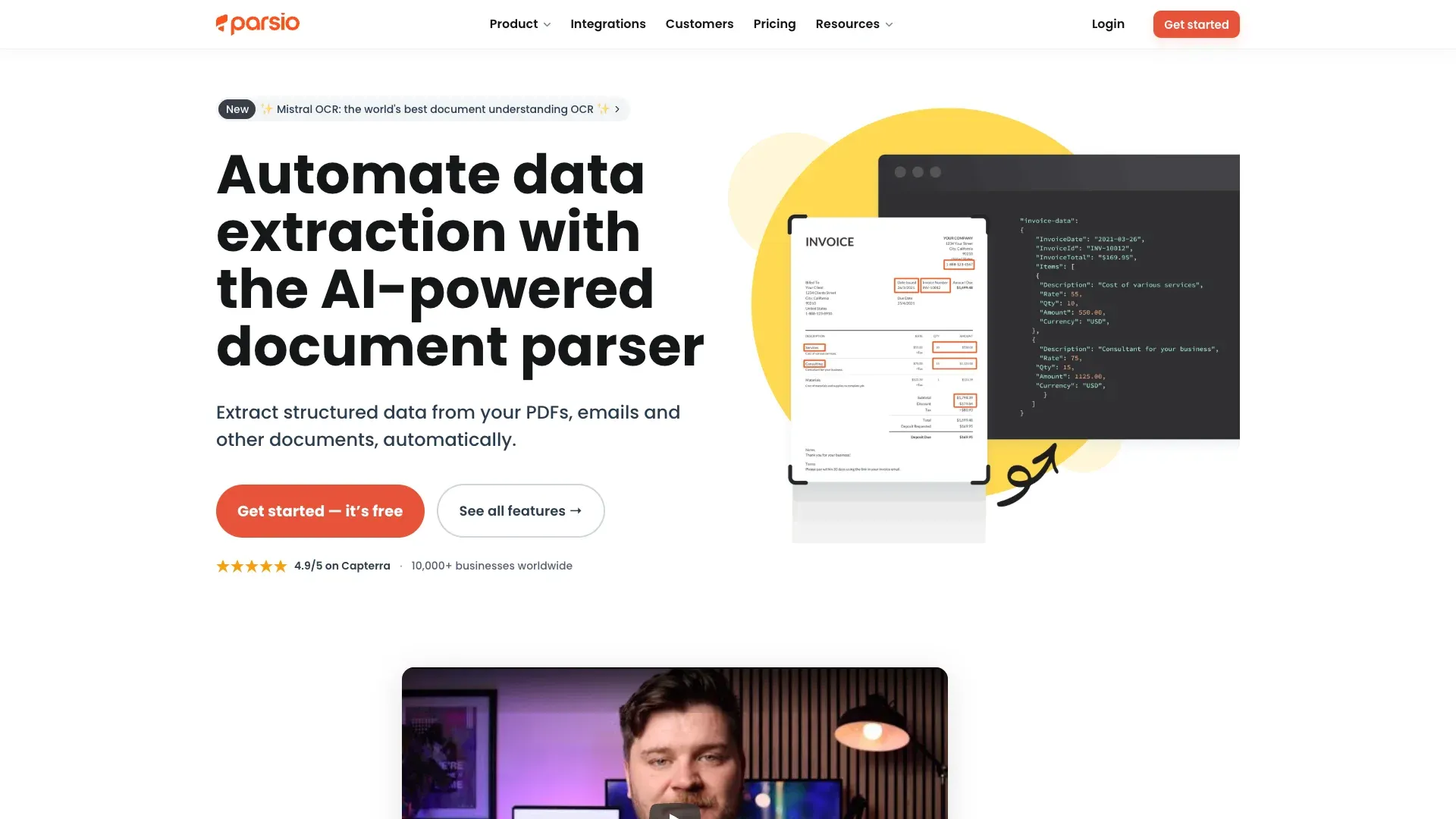 Parsio is a hybrid SaaS parser that combines templates, OCR, AI parsing, and GPT-powered parsing. It sits between Parseur and Docparser in spirit: more flexible than pure zones, but still optimized for recurring document intake.
Key features:
- Built-in OCR
- AI-assisted field detection
- Integrations with Google Sheets, webhooks, API, Zapier, Make, n8n, Pabbly
Pricing: Sandbox with 30 credits. Starter at $41/month for 1,000 credits; Growth at $124/month; Business at $249/month. One parsed document or PDF page can cost 1, 2, or 5 credits depending on parser mode, so the normalized estimate on the starter plan is roughly $41–$205 per 1,000 pages.
Best for: Small-to-mid teams that process recurring document types (invoices, receipts) and want a no-code SaaS solution with light AI.
Pros: Built-in OCR; broad document-type coverage; broad automation stack.
Cons: Third-party review depth is thin; pricing gets less transparent across parser modes; not as clearly differentiated as Parseur or Nanonets.
Table Extraction Showdown: How the Best PDF Scrapers Handle Real-World Tables
Table extraction is the single most-discussed pain point among PDF scraper users—and for good reason. Recent benchmarks like OmniDocBench (1,651 pages across 10 document types) and academic work on heterogeneous table extraction confirm that "table extraction" is not one uniform task. It's a spectrum.
Simple Tables (Clear Borders, Single-Page)
Most tools handle these fine. Tabula, Camelot, pdfplumber, Thunderbit, and AWS Textract all perform well here. If your PDFs only have simple bordered tables, almost any tool on this list will work.
Borderless and Whitespace Tables
This is where the split becomes obvious. Without ruling lines, rule-based parsers struggle to detect column boundaries. Camelot's stream mode and pdfplumber's custom parameter tuning are strong for developers who can fine-tune settings. AI-powered tools like Thunderbit, Nanonets, and AWS Textract interpret layout visually, which tends to work better for non-developers dealing with inconsistent formats.
Multi-Page Spanning Tables
A common failure case. Template tools and simple extractors often treat each page as a separate table unless the workflow explicitly reconnects them. AI-first tools have an advantage here because they can interpret continuity semantically, not just geometrically—though no vendor should be treated as perfect on this class of problem.
Merged Cells and Nested Headers
The hardest scenario. The 2024 EMNLP paper on heterogeneous table information extraction reports F1 ranges from 74.2 to 96.1 depending on method and scenario. AI-powered tools (Thunderbit, Nanonets, AWS Textract) tend to outperform rule-based parsers here because they interpret layout semantically rather than relying on ruling lines.
OCR Compared: Which PDF Scrapers Handle Scanned Documents?
OCR is the dividing line between tools that can handle real business PDFs and tools that only handle ideal machine-generated documents. Here's the matrix:
| Tool | Native OCR | Scanned PDF Support | Multi-Language OCR | Handwriting Support |
|---|---|---|---|---|
| Thunderbit | ✅ Built-in | ✅ Yes | ✅ 34 languages | ⚠️ Limited |
| Adobe Acrobat | ✅ Built-in | ✅ Yes | ✅ Strong | ⚠️ Limited |
| AWS Textract | ✅ Built-in | ✅ Yes | ✅ Multiple major languages | ✅ Closest, but imperfect |
| Nanonets | ✅ Built-in | ✅ Yes | ✅ 40+ languages | ⚠️ Limited |
| Parseur | ✅ Built-in | ✅ Yes | ✅ 60+ languages | ❌ No |
| Parsio | ✅ Built-in | ✅ Yes | ✅ Multi-language | ⚠️ Limited |
| Docparser | ✅ Built-in | ✅ Yes | ✅ Yes | ⚠️ Limited |
| Docling | ✅ Via integration | ✅ Yes | Depends on engine | ⚠️ Limited |
| Tabula | ❌ None | ❌ No | N/A | N/A |
| PyMuPDF | ❌ (Tesseract optional) | ❌ Requires add-on | Depends on engine | Depends on engine |
| Camelot | ❌ None | ❌ No | N/A | N/A |
| pdfplumber | ❌ None | ❌ No | N/A | N/A |
No tool reliably handles handwriting across all cases in 2026. AWS Textract is the closest enterprise API, but handwriting remains a "use with caution" feature. If your PDFs are scanned but typed, any tool with built-in OCR will serve you well. If they're handwritten, set realistic expectations.
AI-Powered vs. Rule-Based vs. Template-Based: Three Generations of PDF Scraping
The easiest way to understand the PDF scraper market in 2026 is as three generations:
Generation 1: Rule-based (Tabula, Camelot, pdfplumber)
These work best on structured, text-based PDFs with consistent layouts. They're powerful in the hands of developers, but brittle when layouts vary. If your documents are predictable, they're still excellent—and free.
Generation 2: Template-based (Parseur, Docparser, Parsio)
Users define zones or fields per document type. Great for recurring formats like invoices from the same vendor. The catch: every new layout or layout drift requires setup or maintenance.
Generation 3: AI/LLM-powered (Thunderbit, Nanonets, AWS Textract, Docling for LLM pipelines)
AI reads the document semantically, adapts to new layouts without templates, and can label and transform data simultaneously. This is where the market is heading. The Everest Group's 2025 IDP assessment and ACL 2025 multimodal table research both point toward LLM- and agent-based extraction as the next standard.
For non-technical users, this matters practically: if your PDFs come from many different sources (vendors, partners, clients), template-based tools become a maintenance burden. AI-powered tools handle variety out of the box. That's the niche Thunderbit was built for—business users who have diverse PDFs and zero interest in writing Python or maintaining extraction templates.
AI PDF scraping for varied layouts Get Started Free
Pricing Breakdown: What the Best PDF Scrapers Actually Cost
This is the comparison nobody else publishes, and it's the one users ask about most. Here's the honest view:
| Tool | Free Tier | Starting Paid Price | Est. Cost per 1,000 Pages | Open Source? |
|---|---|---|---|---|
| Thunderbit | ✅ Free credits | ~$15/mo ($9/mo yearly) | ~$18–$30 | No |
| Tabula | ✅ Unlimited | Free forever | $0 | Yes |
| Camelot | ✅ Unlimited | Free forever | $0 | Yes |
| PyMuPDF | ✅ Unlimited | Free forever | $0 | Yes |
| pdfplumber | ✅ Unlimited | Free forever | $0 | Yes |
| Docling | ✅ Unlimited | Free forever | $0 | Yes |
| Parseur | ⚠️ ~20 pages/mo | ~$39/mo | ~$390 (lowest tier) | No |
| Nanonets | ⚠️ Credits on signup | Usage-based | ~$300–$380 | No |
| Docparser | ⚠️ 14-day trial | $39/mo | ~$78–$390 | No |
| Parsio | ⚠️ 30 credits | $41/mo | ~$41–$205 | No |
| Adobe Acrobat | ❌ (export is paid) | $19.99/mo Pro | Not page-metered | No |
| AWS Textract | ⚠️ 1,000 pages/mo (3 months) | Pay-per-use | $1.50–$65 | No |
The hidden cost trade-off matters more than the sticker price. Open-source Python tools are free in dollars, but they cost developer time to set up, maintain, and debug. Template SaaS tools are straightforward at low variety, but expensive when layouts drift. AI no-code tools like Thunderbit cost credits per row, but dramatically reduce setup time. Cloud APIs like AWS Textract are cheapest at scale—but only when you already have engineering in place.
When I think about "true cost," I factor in the salary of the person doing the work. An hour of a data analyst's time spent configuring templates or writing Python is not free, even if the software is.
Which PDF Scraper Should You Pick?
Here's a quick decision guide:
| Your Situation | Recommended Tool(s) |
|---|---|
| Non-technical, varied PDF layouts, want results fast | Thunderbit, Nanonets |
| Recurring same-format invoices/receipts | Parseur, Docparser, Parsio |
| Developer building a data pipeline | PyMuPDF, Camelot, pdfplumber |
| Enterprise, 10,000+ docs/month, need API | AWS Textract, Nanonets |
| Building LLM/RAG application | Docling |
| Occasional PDF-to-Excel, already have Adobe | Adobe Acrobat |
| Free, local, table-focused, no coding | Tabula |
If you're a business user who just wants data out of PDFs without writing code or setting up templates, start with Thunderbit. It reads every PDF fresh with AI and exports to the tools you already use. If your documents repeat in recognizable layouts, Parseur or Docparser are better fits. And if you want engineering control, the open-source stack is still the cost floor.
Wrapping Up
PDF scraping in 2026 is no longer a single problem with a single answer. The right tool depends on whether you're a developer, a business analyst, or an enterprise team—and whether your PDFs are tidy text files or chaotic scanned images from a dozen vendors.
If you want to see what AI-powered PDF extraction looks like in practice, give Thunderbit's free tier a spin. I think you'll be surprised how much you can pull out of a PDF in just a few clicks. And if Thunderbit isn't the perfect fit, try a few others from this list. There's never been a better time to stop copying and pasting from PDFs and start actually using the data inside them.
For more on data extraction and automation, check out our guides on extracting data from websites to Excel, best data extraction tools, AI data extraction for business, and how to convert images to Excel. You can also watch step-by-step walkthroughs on the Thunderbit YouTube Channel.
FAQs
1. What is the best free PDF scraper?
For non-developers, Tabula is the simplest fully free GUI tool for text-based PDF tables. For developers, Camelot, pdfplumber, PyMuPDF, and Docling are all strong free choices. For a no-code option with a free tier, Thunderbit is the best starting point.
2. Can PDF scrapers handle scanned documents?
Only tools with built-in OCR can handle scanned PDFs directly. That includes Thunderbit, Adobe Acrobat, AWS Textract, Nanonets, Parseur, Docparser, Parsio, and Docling (with integrated OCR engines). Tabula, Camelot, and pdfplumber cannot handle scanned PDFs by themselves—they require pairing with external OCR like Tesseract.
3. How accurate is table extraction from PDFs?
It depends heavily on table complexity. Most tools handle simple bordered tables well. Borderless tables, merged cells, and multi-page tables are much harder. AI-powered tools like Thunderbit, Nanonets, and AWS Textract tend to outperform rule-based parsers on varied layouts, while rule-based tools can still be excellent on stable, text-based PDFs.
4. Do I need coding skills to scrape PDFs?
No. Tools like Thunderbit, Parseur, Docparser, Parsio, Nanonets, and Adobe Acrobat are usable without coding. Tabula also has a GUI. Python libraries like PyMuPDF, Camelot, pdfplumber, and Docling require code.
5. Can I export PDF data directly to Excel or Google Sheets?
Most tools support export to CSV or Excel at minimum. Thunderbit also exports directly to Google Sheets, Airtable, and Notion for free. Parseur, Docparser, and Parsio support exports into business workflows through integrations like Zapier, webhooks, and APIs.
Try AI PDF Scraping with Thunderbit Get Started Free
Learn More




