

Ever feel like your workday is a never-ending loop of clicking, copying, and pasting the same stuff on websites? You’re not alone. I’ve talked to hundreds of business users—sales pros, ecommerce managers, real estate agents—who spend hours every week on repetitive web tasks that make you wonder if your mouse deserves overtime pay. In fact, employees spend up to 62% of their workweek on routine, recurring tasks, and the typical office worker does over 3 hours of copy-pasting every week. No wonder so many of us are desperate for a better way.
That’s where automating website actions comes in. Whether you’re registering accounts, updating listings, or collecting data, automation can save you time, reduce errors, and free you up to focus on the work that actually matters. And thanks to new no-code tools like Thunderbit, you don’t need to be a programmer—or even particularly tech-savvy—to get started. Let’s dive into what it means to automate website actions, why it matters, and how you can do it yourself (without pulling your hair out).
What Does It Mean to Automate Website Actions?
When we talk about “automating website actions,” we’re really talking about letting software handle the boring, repetitive stuff you do on websites—so you don’t have to. Think about all those times you:
- Fill out the same online form over and over (like registering accounts or submitting product info)
- Copy data from a website into a spreadsheet (maybe for sales leads or price monitoring)
- Update records or listings on a portal (like real estate properties or inventory)
- Upload files or images to a site in bulk
Automation means you set up a process once, and the tool does the clicking, typing, and copying for you. It’s like having a super-fast, never-tired assistant who follows your instructions to the letter—no coffee breaks required.
Real-world examples:
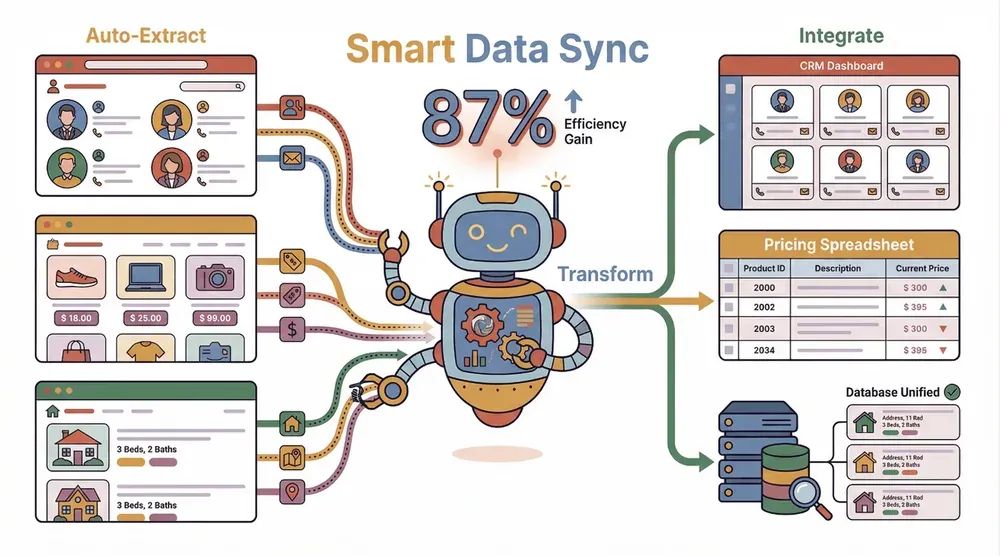
- A sales rep scrapes contact info from a directory and auto-fills it into their CRM.
- An ecommerce manager pulls product prices from competitor sites and updates their own listings.
- A real estate agent collects property details from multiple listing sites and merges them into one spreadsheet.
If you’ve ever thought, “There has to be a faster way to do this,” you’re already halfway to becoming an automation convert.
Why Automate Website Actions? Key Scenarios and Benefits
Let’s get specific. Here are the most common scenarios where automating website actions pays off—big time:
| Scenario | Manual Effort (Old Way) | Automation Benefit (New Way) |
|---|---|---|
| Account Registration | Fill out each form by hand | Register dozens of accounts in minutes |
| Data Collection (Leads, Prices) | Copy-paste info row by row | Scrape hundreds of records at once |
| Updating Listings/Records | Edit each record individually | Batch update all records in one go |
| File/Image Uploads | Upload files one at a time | Bulk upload with a single workflow |
Why it matters for business:

- Time saved: Teams report saving 20+ hours per month by automating repetitive web tasks.
- Fewer errors: Automation reduces copy-paste mistakes and missed updates.
- Higher productivity: 90% of workers say automation helps them be more productive.
- Happier teams: 63% say automation helps fight burnout.
In short, automation isn’t just a “nice to have”—it’s a game plan for working smarter, not harder.
Exploring Solutions: Traditional Tools vs. Thunderbit for Website Automation
So, how do you actually automate website actions? There are a few main approaches:
Traditional Tools
- RPA (Robotic Process Automation): Think of tools like UiPath or Automation Anywhere. They’re powerful, but often require technical setup, scripting, and lots of maintenance—especially when websites change their layout. RPA bots are great for structured, repetitive tasks, but they struggle with dynamic or complex web pages (IBM Community).
- Browser Extensions & Scripting Libraries: Tools like Selenium or browser macros let you record actions or write scripts. They’re flexible, but you need to know how to code, and troubleshooting can be a headache.
- No-Code Automation Platforms: Zapier and similar tools can automate some web actions, but they’re limited to sites with public APIs or integrations.
Thunderbit: The AI-Powered, No-Code Alternative
Thunderbit flips the script. It’s an AI web scraper and automation tool built for business users—no coding, no templates, no technical setup. You just describe what you want (“extract product names and prices from this page”), and Thunderbit’s AI figures out the rest.
Let’s compare:
| Criteria | Traditional RPA/Script | Thunderbit (AI Web Scraper) |
|---|---|---|
| Ease of Use | Requires coding/setup | No-code, 2-click setup |
| Flexibility | High (if you code) | High (AI adapts to sites) |
| Maintenance | Frequent (breaks easily) | Minimal (AI adapts) |
| Technical Skill | High | None needed |
| Setup Time | Hours/days | Minutes |
| Cost | High (licenses, devs) | Free tier; paid from $15/mo |
Thunderbit is praised for its practicality and ease of use, especially for sales, marketing, and operations teams who want results—fast.
Scrape data from any website using AI Get Started Free
What sets Thunderbit apart is how simple it makes automation. The workflow is basically:
- Click “AI Suggest Fields” – Thunderbit reads the page and recommends the best fields to extract or automate.
- Click “Scrape” – The AI does the work, filling tables, extracting data, or even uploading files as needed.
You don’t have to build templates, write scripts, or worry about website changes. Thunderbit’s AI adapts on the fly.
Thunderbit: Making Website Automation Accessible for Everyone
How “AI Suggest Fields” Works
This is where the magic happens. When you land on a website, just click “AI Suggest Fields.” Thunderbit scans the page and suggests the most relevant fields—like “Product Name,” “Price,” “Email,” or “Image URL.” It even creates custom instructions for each field, so the AI knows exactly what to look for.
Example:
On an ecommerce site, Thunderbit might suggest:
- Product Name
- Price
- SKU
- Image
- In Stock (Yes/No)
On a real estate portal, it might suggest:
- Property Address
- Listing Price
- Agent Name
- Contact Email
- Number of Bedrooms
You can accept the suggestions or tweak them—no guesswork, no technical jargon.
The Simplicity of “Scrape” and Data Export
Once your fields are set, just hit “Scrape.” Thunderbit visits each page, grabs the data, and organizes it into a neat table. Exporting is just as easy: you can send your data straight to Excel, Google Sheets, Airtable, Notion, or download as CSV/JSON—all for free.
Supported export options:
- Excel (.xlsx)
- CSV
- Google Sheets
- Airtable
- Notion
- JSON
Users love how quick and frictionless this is—no more copy-pasting or manual cleanup.
Try Thunderbit for Website Automation
From Natural Language to Automated Actions: Thunderbit’s Unique Advantage
Here’s my favorite part: Thunderbit lets you describe what you want in plain English. You don’t have to know how to “map fields” or “write selectors.” Just say, “Extract all product names and prices from this page,” or “Fill out this form with my contact info,” and Thunderbit’s AI translates that into structured actions.
Sample prompts:
- “Scrape all emails and phone numbers from this directory.”
- “Fill out the registration form using the data in my spreadsheet.”
- “Download all images from the product gallery.”
This is a lifesaver for anyone who knows what they want, but isn’t sure how to make it happen technically. Thunderbit bridges that gap—no IT ticket required.
Overcoming Traditional Automation Challenges
Traditional automation tools have some real pain points:
- Fragile scripts: RPA bots and browser scripts often break when a website changes its layout (Skyvern).
- High maintenance: Keeping automations running can eat up hours every week.
- Technical barriers: Most require coding, which puts them out of reach for business users.
- Limited adaptability: RPA bots follow rules—they don’t “think,” so they can’t handle unexpected changes.
Thunderbit’s AI solves these by reading the site fresh each time, adapting to layout changes, and letting you update your automation with a few clicks. It’s maintenance-free for most use cases.
Step-by-Step Guide: How to Automate Website Actions with Thunderbit
Ready to try it yourself? Here’s how to automate a website action—let’s use the example of scraping product data from an ecommerce site.
Step 1: Install Thunderbit and Access Your Target Website
- Download the Thunderbit Chrome Extension.
- Pin it to your browser for easy access.
- Navigate to the website you want to automate (e.g., an ecommerce product listing).
Step 2: Use “AI Suggest Fields” to Identify Automation Opportunities
- Click the Thunderbit icon in your browser.
- Hit “AI Suggest Fields.” Thunderbit will scan the page and recommend fields to extract or automate.
- Review the suggestions—add, remove, or rename fields as needed.
Step 3: Customize Fields and Add Natural Language Prompts (Optional)
- Want to tweak the automation? Add your own field names, change data types, or write a custom instruction (“Only extract prices above $50”).
- Thunderbit’s AI will follow your lead.
Step 4: Click “Scrape” to Run the Automation
- Hit “Scrape.” Thunderbit will visit each page (including subpages if you want), extract the data, and build your table.
- For bulk tasks, you can paste a list of URLs and Thunderbit will process them all at once.
Step 5: Export and Use Your Data
- Once the automation is complete, preview your results.
- Export to Excel, Google Sheets, Airtable, Notion, or download as CSV/JSON.
- Use the data for your sales outreach, inventory updates, market research, or whatever your workflow needs.
Troubleshooting tip: If a field doesn’t come out right, just adjust the field name or instruction and re-run. Thunderbit learns and adapts.
Learn More: What Is Data Scraping and How to Do It Get Started Free
Real-World Examples: Automating Website Actions in Ecommerce and Real Estate
Ecommerce: Product Data Collection & Price Monitoring
Let’s say you’re an ecommerce manager who wants to track competitor prices. Here’s how Thunderbit helps:
- Go to the competitor’s product listing page.
- Use “AI Suggest Fields” to extract Product Name, Price, SKU, and Stock Status.
- Click “Scrape” to pull all the data into a table.
- Export to Google Sheets for easy comparison and price monitoring.
Result: What used to take hours of manual checking and copy-pasting now takes minutes. You can even schedule Thunderbit to run this scrape daily, so your pricing is always up to date.
Real Estate: Property Listing Updates
Suppose you’re a real estate agent who needs to update your property listings across multiple sites.
- Open the listing site in Chrome.
- Use “AI Suggest Fields” to extract Address, Price, Agent Name, and Contact Info.
- Click “Scrape” to gather all listings.
- Export to Excel, update your records, and use Thunderbit’s autofill to push updates back to the site.
Result: You keep your listings fresh and accurate, without the manual grind.
Efficiency gains: Users report saving over 10 hours per week on these kinds of tasks.
Conclusion & Key Takeaways
Automating website actions isn’t just for techies anymore. With tools like Thunderbit, anyone can automate repetitive web tasks—account registrations, data collection, record updates, and more—in just a few clicks. The benefits are real: less time wasted, fewer errors, and more time for the work that actually moves your business forward.
Key takeaways:
- Automate website actions to save time, reduce errors, and boost productivity.
- Thunderbit’s AI-powered, no-code approach makes automation accessible to everyone.
- “AI Suggest Fields” and “Scrape” turn complex processes into simple, repeatable workflows.
- Export your data anywhere—Excel, Sheets, Airtable, Notion—free and easy.
- Perfect for sales, ecommerce, real estate, and any team tired of copy-pasting.
Ready to ditch the busywork? Download Thunderbit and try automating your first website action today. And if you want more tips, check out the Thunderbit Blog for deep dives and step-by-step guides.
Automate Your First Website Action with Thunderbit
FAQs
1. What does it mean to automate website actions?
It means using software to handle repetitive tasks on websites—like filling forms, extracting data, or uploading files—so you don’t have to do them manually.
2. Who can benefit from automating website actions?
Sales teams, ecommerce managers, real estate agents, marketers, and anyone who spends time on repetitive web tasks can benefit from automation.
3. How is Thunderbit different from traditional automation tools?
Thunderbit uses AI to read websites and automate actions with no coding or templates required. It adapts to changing layouts and lets users describe what they want in plain English.
4. What kind of website actions can Thunderbit automate?
Thunderbit can automate data extraction, table filling, bulk uploads, form submissions, and more—across almost any website.
5. How do I get started with Thunderbit?
Just install the Chrome Extension, open your target website, and follow the “AI Suggest Fields” and “Scrape” steps. Export your data wherever you need it.
Ready to put your busywork on autopilot? Give Thunderbit a try and see how much time you can save.
Try AI Web Scraper Get Started Free
Learn More




