

Ever find yourself stuck in a loop of clicking “Download” on a dozen web pages, only to realize you’ve spent your whole morning babysitting your browser? You’re not alone. In my years working with SaaS and automation, I’ve seen teams lose hours (and sometimes their sanity) to the repetitive grind of manual file downloads. Asana's 2023 Anatomy of Work Index — republished by Clockify — reports employees spend up to 62% of their time on repetitive "work about work", and Smartsheet's survey of frontline workers found nearly 40% lose at least a quarter of every week to manual tasks like data entry and file handling.
Manual downloads aren't just tedious — they introduce missed updates, version drift, and inconsistent file names that someone has to clean up later. Most teams don't need to live with that. In this guide we'll look at how to automate downloading a file from a website, and where AI-driven tools like Thunderbit shorten the loop for non-developers.
Why Manual File Downloads Slow Down Your Workflow
Automate File Downloads with AI Get Started Free
Let’s be honest: downloading files by hand is a productivity killer. It’s not just about the time spent clicking—manual downloads introduce a whole host of pain points that ripple through your business:
| Manual Download Pain Point | Impact on Workflow & Business |
|---|---|
| Time-consuming steps: Logging in, navigating, and clicking each file one by one | Wasted hours, delayed reports, and slower decisions (example: 1–2 days/month spent on invoices) |
| Inconsistent formats & names: Files come in random formats or with cryptic names | Extra manual cleanup, higher error risk, and frustration (CSV imports needing “more manual setup”) |
| Error-prone repetition: Tedious clicking leads to missed files or wrong versions | Data quality issues, rework, and the joy of double-checking everything (manual error rates average ~1%) |
| No automatic updates: You have to remember to check for new files | Outdated info, missed opportunities, and late responses (missed invoices or stale lead lists) |
| Security headaches: Sharing accounts or storing credentials in risky ways | Security risks and IT overhead (plain text passwords in scripts—yikes) |
I’ve heard stories of teams hiring staff just to download and organize files, or sales ops folks spending afternoons wrangling lead lists from three different portals—each with its own “special” format. It’s not just inefficient; it’s demoralizing. And let’s not forget the opportunity cost: every hour spent on downloads is an hour not spent on actual business value.
How to Automate Downloading a File from a Website: The Modern Approach
Imagine telling a smart assistant, “Hey, grab all the PDFs from this site and organize them for me,” and having it done in minutes. That’s the promise of modern automation.
Why Not Just Write a Script?
Sure, you could whip up a Python script or an RPA bot. The catch is maintenance: a custom scraper that worked yesterday can break the moment a vendor portal tweaks its DOM, and someone needs the time and skill to chase those breaks. Skyvern's team makes the same point about invoice scripts in particular.
Enter No-Code and AI-Powered Tools
Today’s automation tools—especially AI-driven ones like Thunderbit—let you automate downloads without writing a single line of code. Just describe what you want (“Download all invoice PDFs and their dates”), and the AI figures out the rest. The trade-off shifts: instead of writing and patching selectors, you're describing the outcome ("download all invoice PDFs and their issue dates") and letting the tool plan the extraction. That's where this becomes accessible to people who don't think of themselves as scrapers.
This shift is huge for business users. Now, anyone can automate file downloads, batch jobs, and even complex multi-step processes—no IT ticket required.
Comparing File Download Automation Solutions: Which Is Right for You?
Not all automation tools are created equal. Here’s how the main options stack up:
| Solution | Ease of Use | Setup Time | Maintenance | Best For |
|---|---|---|---|---|
| Thunderbit (AI Web Scraper) | Very easy (point-and-click, natural language) | Minutes | Low (AI adapts to changes) | Business users, recurring tasks, mixed file types |
| Traditional Browser Extensions | Moderate (visual, but manual setup) | Hours (for complex sites) | Medium (manual updates if site changes) | Semi-technical users, fixed layouts |
| Power Automate / RPA | Moderate (drag-and-drop, logic flows) | Hours–Days | Medium–High (flows break on UI changes) | Enterprise, multi-app workflows |
| Custom Scripts (Python/JS) | Hard (for non-coders) | Days–Weeks | High (breaks often, needs devs) | Developers, ultimate flexibility |
| Manual | Easy to start, tedious at scale | None | Very high ongoing effort | One-off or rare needs |
For most business users, AI-powered tools like Thunderbit hit the sweet spot: quick to set up, easy to use, and low upkeep. You get all the power of automation, minus the headaches.
How Thunderbit Makes File Download Automation Simple for Business Users
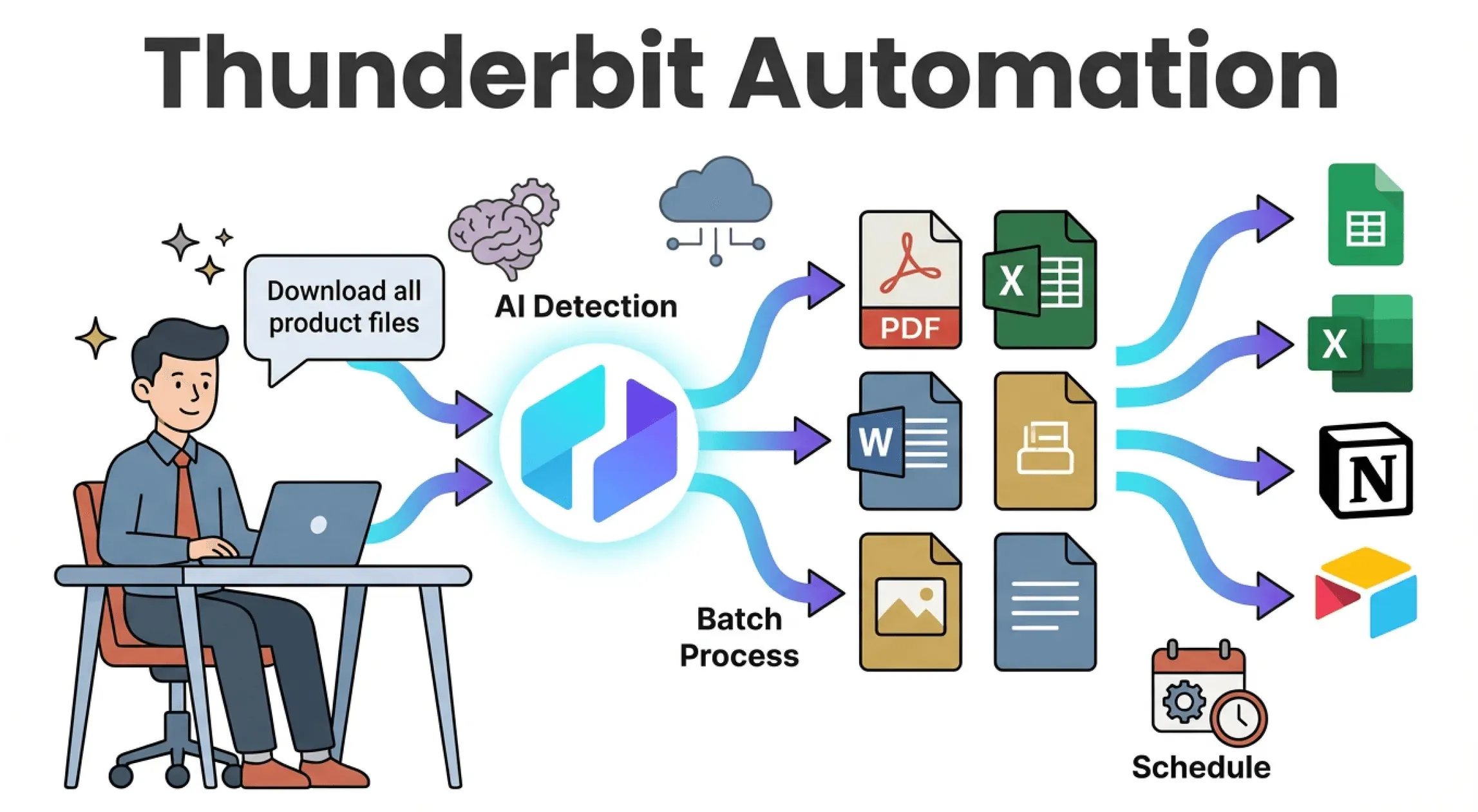 Let’s talk about why Thunderbit is my go-to for automating file downloads—especially if you’re not a coder.
- "AI Suggest Fields" as a starting point: Click it and Thunderbit scans the page, proposing file links (PDFs, images, docs) and adjacent metadata like names or dates. You then accept or edit those suggestions before scraping.
- Natural Language Prompts: Describe your goal in plain English (“Download all product images and names”), and Thunderbit’s AI builds the extraction plan.
- Handles All File Types: PDFs, Excel, Word, images, even embedded media—Thunderbit treats them as just another data field.
- Batch & Subpage Downloads: Need to grab files from multiple pages or drill into subpages? Thunderbit handles pagination and subpage navigation out of the box.
- No-Code, No Templates Needed: For popular sites, use instant templates. For anything else, let AI handle the structure—no wrestling with selectors.
- Direct Export: Download files to your computer, or export results (with file links or attachments) straight to Excel, Google Sheets, Notion, or Airtable.
- Scheduling: Set up recurring downloads (“every Monday at 9am”) and let Thunderbit’s cloud do the work—even if your computer is off.
Thunderbit is aimed at business teams who'd rather review extraction output than maintain a scraper. For sites with predictable structure it's quick to set up; for messy or auth-gated pages you'll still spend time on field review and login state, which is covered later in this guide.
Try Thunderbit for Automated File Downloads
Step-by-Step Guide: How to Automate Downloading a File from a Website with Thunderbit
How to Scrape Any Website Using AI Get Started Free
Let’s walk through a real-world example—no technical skills required.
Step 1: Install and Set Up Thunderbit
- Install the Thunderbit Chrome Extension.
- Pin the extension to your browser toolbar for easy access.
- Click the Thunderbit icon and log in (Google or email—takes seconds).
- Make sure you’re logged in to any websites you need to access (Thunderbit uses your browser session).
That’s it. Setup usually takes less than a minute.
Step 2: Define Your Download Task Using AI
- Navigate to the web page with the files you want to download (e.g., a vendor’s “Reports” page).
- Click the Thunderbit extension icon.
- Hit “AI Suggest Fields.” Thunderbit’s AI scans the page and suggests fields like “File Name,” “Download Link,” and “Date.”
- Optionally, type a natural language prompt: “Extract all PDF download links and their names.”
Thunderbit builds a table of what it will extract—no coding, no templates.
Step 3: Review and Adjust Download Fields
- Check the AI’s Suggestions: Are all the fields you need included? (File name, URL, date, etc.)
- Edit or Add Fields: Rename columns, add missing info, or remove extras.
- Set Data Types: Make sure file links are marked as URLs.
- Enable Pagination or Subpages: If files are spread across multiple pages, turn on pagination. If you need to click into each item to access the download, enable subpage scraping.
Thunderbit’s AI usually gets it right, but you can tweak as needed.
Step 4: Run the Automation and Export Files
- Click “Scrape.” Thunderbit collects all the file info into a table.
- Preview the results—make sure all files and info are there.
- Click “Export.” Choose your format:
- Download files to your computer (Thunderbit can save them with meaningful names, not “document(17).pdf”).
- Export to Excel, Google Sheets, Notion, or Airtable (files can be attached directly to rows).
- For recurring needs, set up a schedule (“every Monday at 9am”) and let Thunderbit’s cloud handle it.
No more clicking through dozens of links—Thunderbit does it all in one go.
Download Thunderbit Chrome Extension
Beyond Automation: Managing and Organizing Downloaded Files for Business Value
Downloading files is just the start. Thunderbit’s AI can help you:
- Auto-Name and Organize Files: Use scraped data to name files (“Invoice_2025-10.pdf”) and sort them into folders.
- Tag and Categorize: Add fields for vendor, date, or category—making files searchable and actionable.
- Enrich Data: Extract key info from files (like invoice numbers or due dates from PDFs) as part of the workflow.
- Integrate with Workflows: Export files and data directly to your team’s tools—no manual uploads needed.
Think of it as turning a pile of raw downloads into a structured, searchable business asset.
Real-Time vs. Batch File Downloads: Meeting Your Business Needs
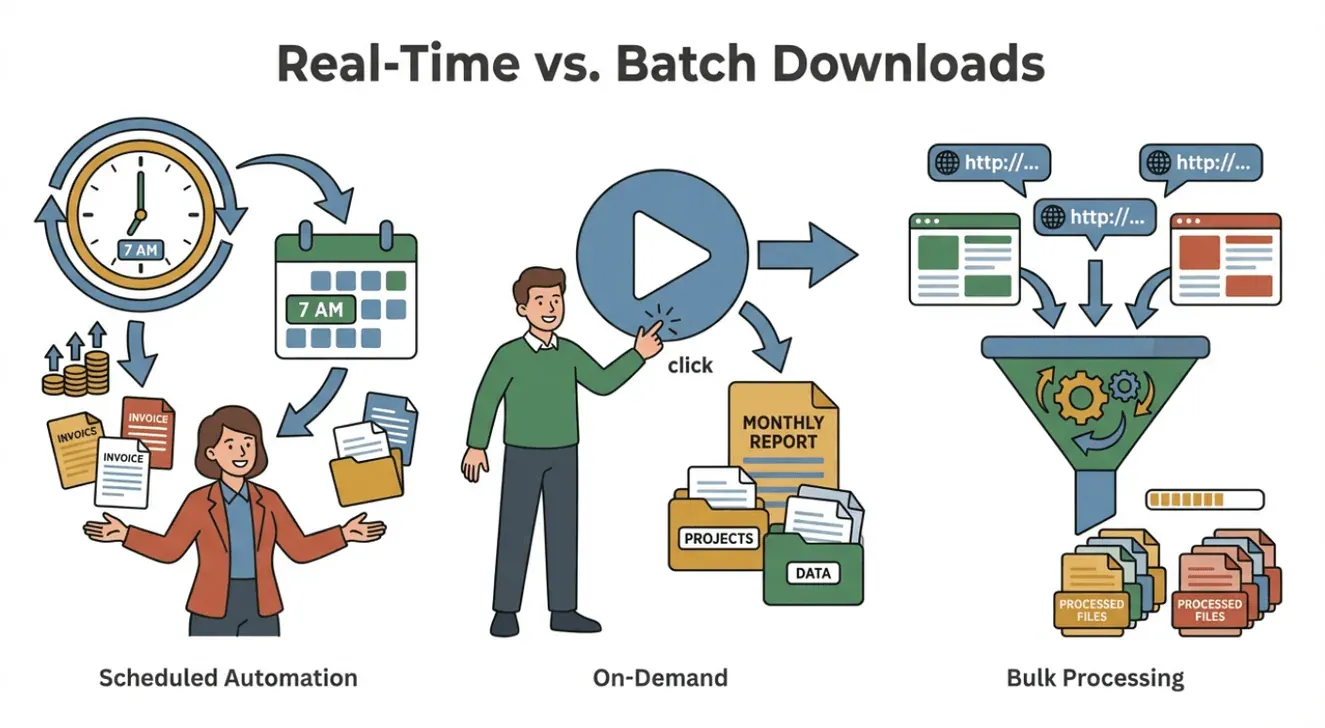 Not all downloads are created equal. Sometimes you need files as soon as they’re available (real-time), other times a weekly batch is fine.
- Real-Time / Scheduled: Use Thunderbit’s scheduler to run downloads at set intervals (“every day at 7am”). Great for sales teams who need fresh leads or ops teams tracking daily invoices.
- Batch / On-Demand: Run the automation when you need it—perfect for monthly reports or one-off projects.
- Bulk Scraping: Paste a list of URLs and let Thunderbit process them all at once (bulk scraping guide).
Align your automation with your business cycle—Thunderbit gives you the flexibility to do both.
Troubleshooting Common Issues in File Download Automation
Even the best tools hit bumps. Here’s how to handle common issues with Thunderbit:
- Missing Files or Wrong Links: Double-check field selection. Use manual selection if AI misidentifies a link.
- Login Issues: For sites requiring authentication, use browser mode (Thunderbit uses your session). For cloud scraping, provide login steps or tokens if needed.
- CAPTCHAs/Anti-Bot: Reduce scraping frequency or use cloud mode with rotating IPs.
- Site Changes: If a website redesign breaks your automation, rerun “AI Suggest Fields” to adapt.
- Quota Limits: Monitor your Thunderbit credits (1 credit = 1 row). Upgrade if you need more volume.
- File Not Downloading: Some files require an active session. Use browser mode, or test the link manually.
For more help, check Thunderbit’s documentation or reach out to support.
Conclusion & Key Takeaways: Unlocking Efficiency with Automated File Downloads
Automating file downloads isn’t just about saving time—it’s about unlocking a new level of efficiency, accuracy, and business value. With tools like Thunderbit, you can:
- Reclaim hours every week from repetitive, error-prone tasks — Smartsheet found nearly 60% of workers think they could reclaim six or more hours a week if their repetitive work was automated.
- Reduce mistakes and ensure you never miss a critical file.
- Get fresher data, faster—and make better decisions.
- Empower your team to automate without IT bottlenecks.
- Integrate downloads directly into your workflow—from Excel to Notion to Airtable.
If file downloads are eating into a meaningful slice of someone's week — a few hours, every week, on the same vendor portals — that's the case where automation pays for itself quickly. For lighter or one-off needs, a manual download is still fine; the goal isn't to automate everything, it's to stop spending time on the predictable parts.
For more tips on web automation, check out the Thunderbit Blog or subscribe to our YouTube Channel.
Try AI File Download Automation with Thunderbit Get Started Free
FAQs
1. Can Thunderbit automate downloading files that require login?
Yes—Thunderbit’s browser mode uses your logged-in session to access files behind authentication. For cloud scraping, you may need to provide login steps or tokens.
2. What file types can Thunderbit download?
Thunderbit supports PDFs, images, Excel, Word docs, and most common file types. It can also extract text from PDFs and images using OCR.
3. How does Thunderbit handle pagination or files spread across multiple pages?
Thunderbit’s AI can automatically detect and handle pagination (including infinite scroll) and subpage navigation, ensuring all files are captured.
4. Can I schedule recurring downloads with Thunderbit?
Absolutely. Use the scheduler to set up downloads at any interval (“every Monday at 9am,” “daily at midnight,” etc.). Thunderbit’s cloud will handle it—even if your computer is off.
5. What if the website changes its layout?
Thunderbit’s AI adapts to many changes automatically. If a major redesign happens, just rerun “AI Suggest Fields” to update your automation.
Ready to automate your next file download? Download Thunderbit for free and see how easy it can be.
Learn More




